On August 8th, Blackboard updated the Gradebook Grid View. Your gradebook data, grade calculations, and all course settings are completely unaffected by this update. The List View (Gradable Items) is unchanged; only the Grid View is new.
Discover the new features through a series of short videos, or scroll down this page to explore the improvements and interface simplifications.
Watch the videos: Access/Enroll yourself in the Alerts Course to access the video guides and see what's changing.
Navigation & Layout
Views & tabs
| Prior 8 August | From 8 August |
|---|---|
| Four tabs: Overview, Gradable Items, Grades, Students | Two views: Grid View and List View (toggle buttons). Students tab is removed from Grid View: click a student’s name to see details. |

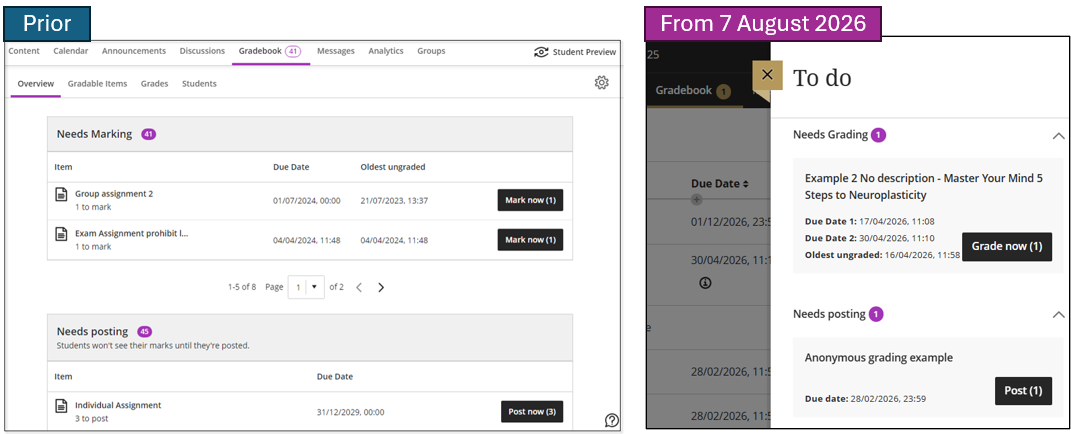
Overview / To Do
| Prior 8 August | From 8 August |
|---|---|
| 'Overview' tab — opens a full-page view, losing gradebook context. | 'To Do' button (top right) — opens as a panel over the gradebook so you keep your context. Shows Needs Grading, Needs Posting items, same as before; each section can be collapsed |
Student Display & Name Options
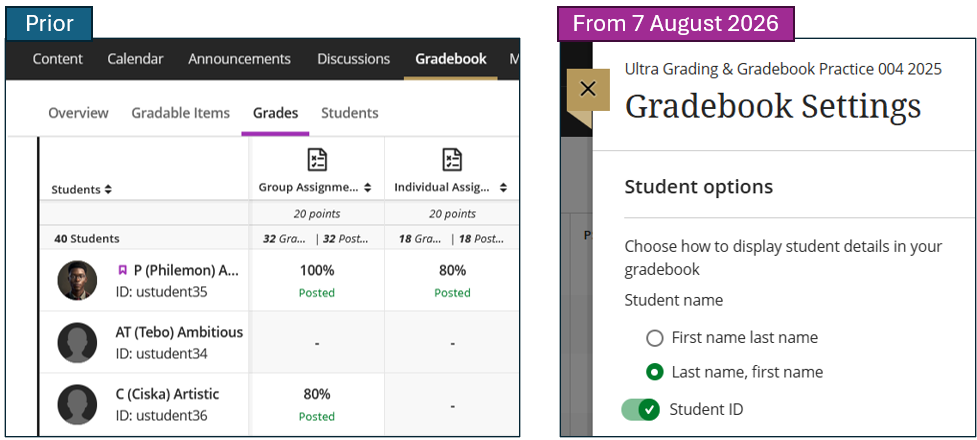
Name order
| Prior 8 August | From 8 August |
|---|---|
| One option: First Name Last Name only. | Choose: First Name Last Name or Last Name, First Name (in Gradebook Settings → Student Options). |
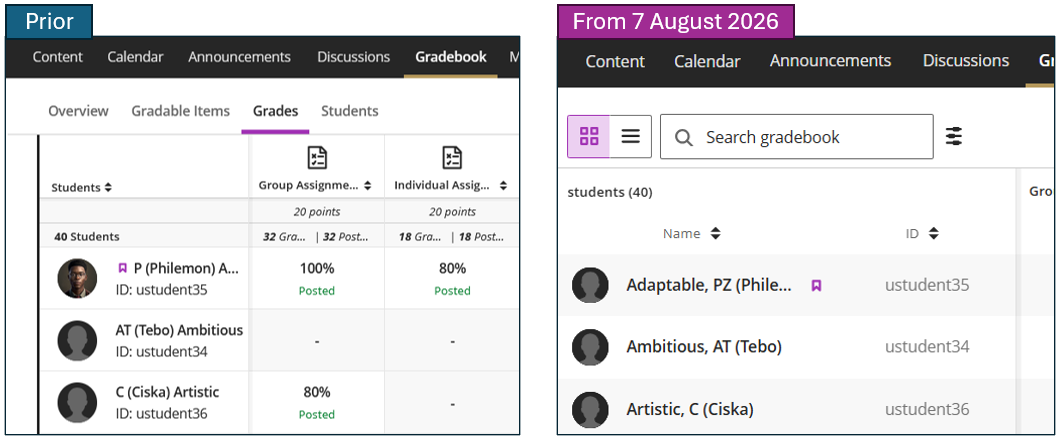
Student ID
| Prior 8 August | From 8 August |
|---|---|
| Shown beneath name — cannot be hidden or sorted. | Toggle Student ID column on or off. ID now appears in its own sortable column. |
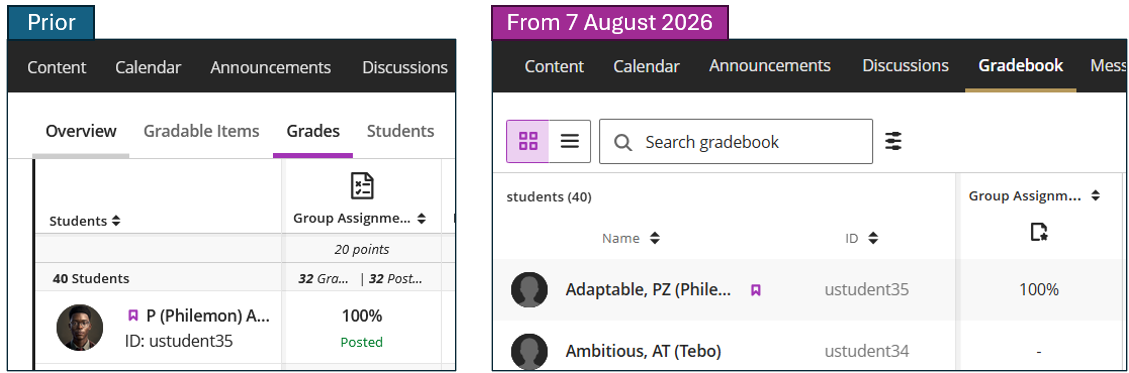
Accommodation flag
| Prior 8 August | From 8 August |
|---|---|
| Small flag next to student name, next to ID — easy to miss. | Flag moved to the right of the name column — more visible. |
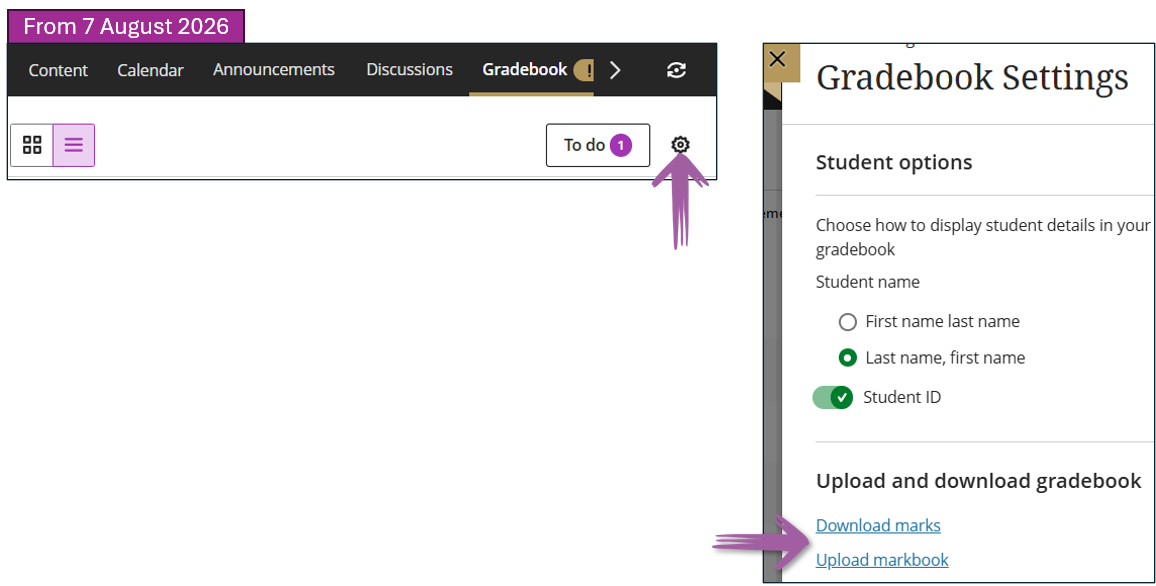
Download & Upload moved
This functionality has moved to the Gradebook Settings.
Gradebook Filter
Filter behaviour
| Prior 8 August | From 8 August |
|---|---|
| Filter opens in a side panel. After each selection, you must return to the list to select another item. | The filter panel opens in a modal. Dropdowns remain open after each selection, making it easy to select multiple items in one go. |
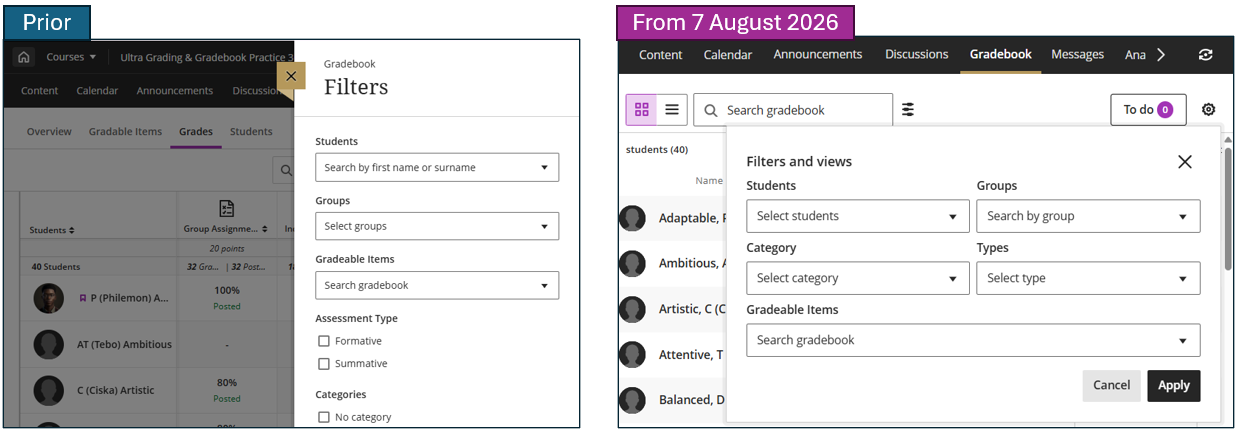
Filter options
| Prior 8 August | From 8 August |
|---|---|
| Filter by Students, Groups, Categories, Types, or Items. | Same options, improved usability. |
Refer to the image above.
Column Headers & Assessment Details
Column menu
| Prior 8 August | From 8 August |
|---|---|
| Click column header to open a drop-down menu. Go in and out of actions one at a time (ping-pong effect). | Click column name to open. Assessment Details panel (stays open). Navigate between columns with left/right arrows without closing. |
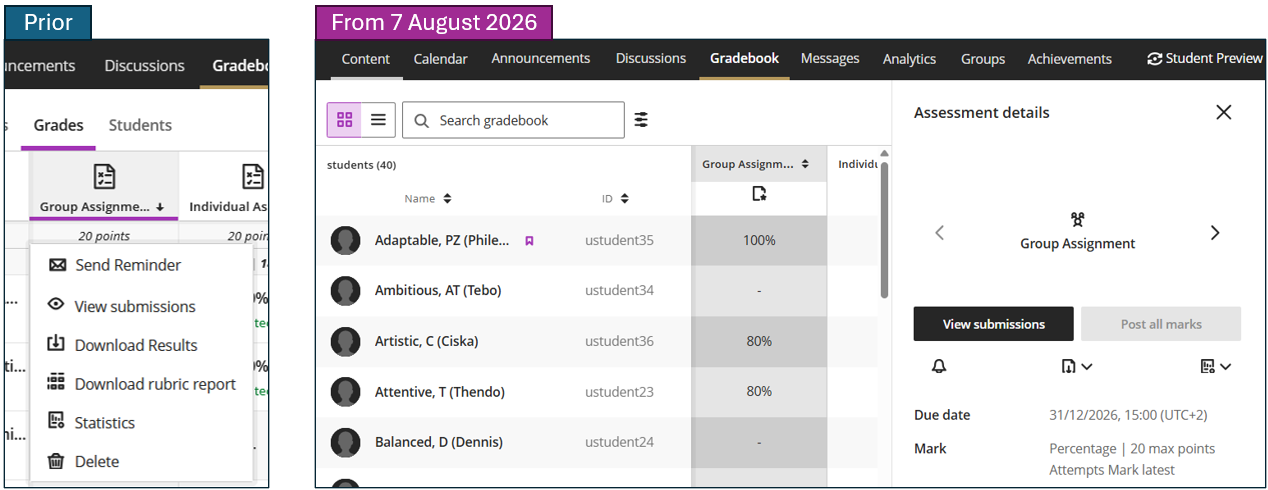
Assessment details
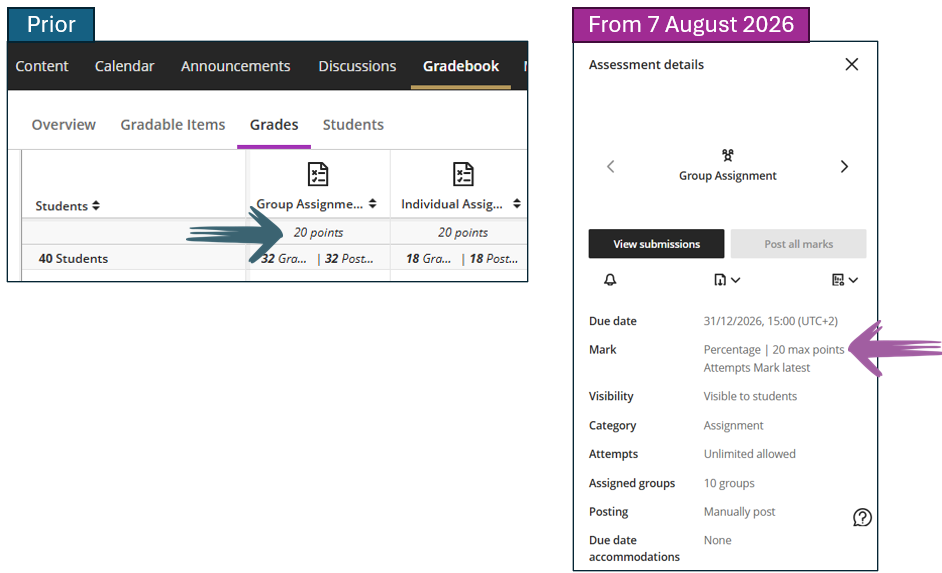
Previously, you had to open the assessment settings to view assessment details. From 8 August 2026, the Assessment Details panel displays the due date, category, maximum points, grading method, number of attempts, exceptions, and accommodations—all in one place within the Gradebook, with no extra clicks required.
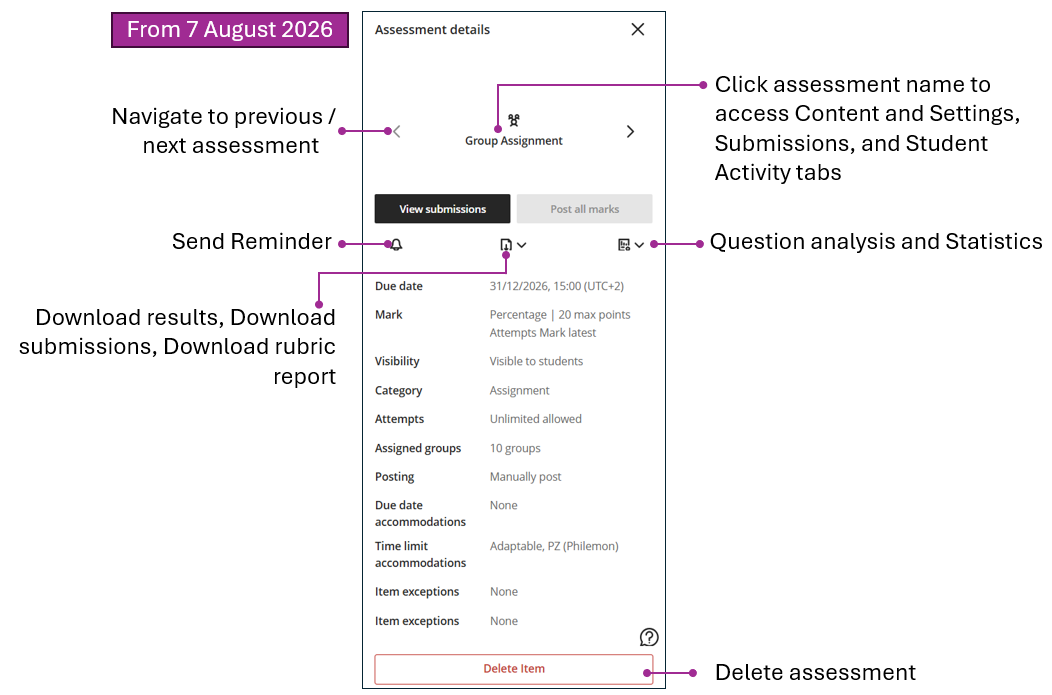
Points possible
| Prior 8 August | From 8 August |
|---|---|
| Displayed in the column header. | Visible in the Assessment Details panel by clicking the column name. |
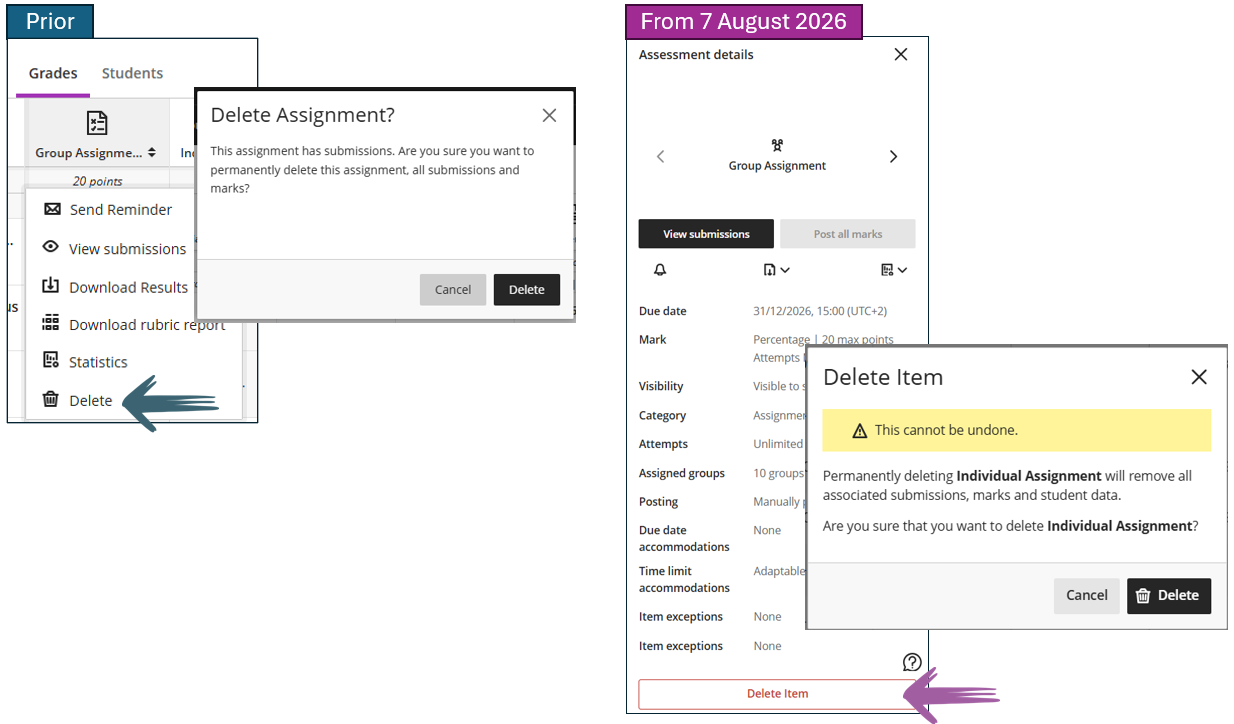
Delete column
| Prior 8 August | From 8 August |
|---|---|
| Delete option part of the rest of the menu; clicked often accidentally. Minimal confirmation warning. | Delete moved further down in the menu, shown in red. Warning modal names the column being deleted and includes a caution banner. Harder to delete accidentally. |
Grade Entry & The Grade Details Panel
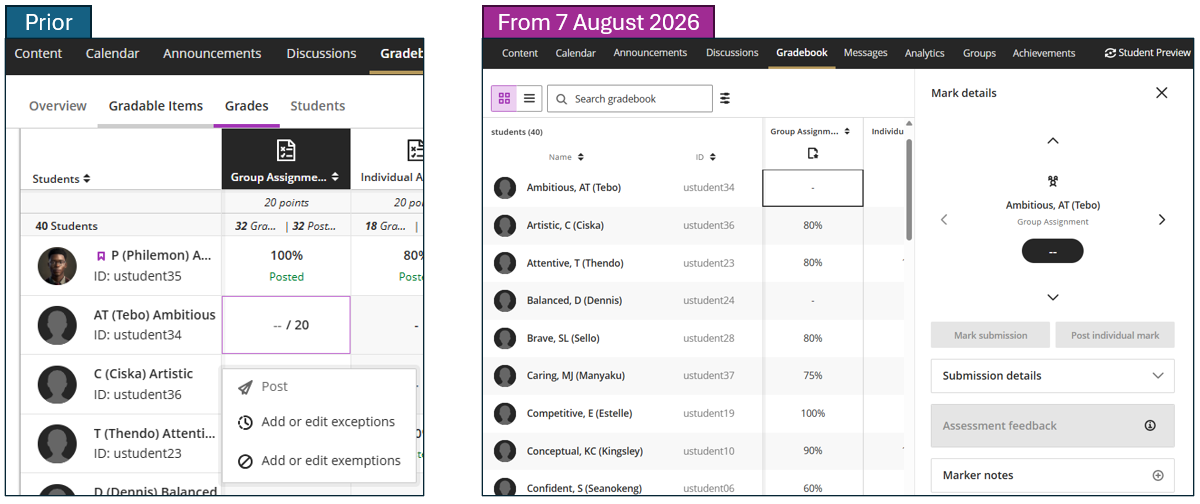
Clicking a cell
| Prior 8 August | From 8 August |
|---|---|
| Click cell → drop-down menu appears (obscures view while grading). | Click cell → Grade Details panel opens on the right side (gradebook stays visible). |
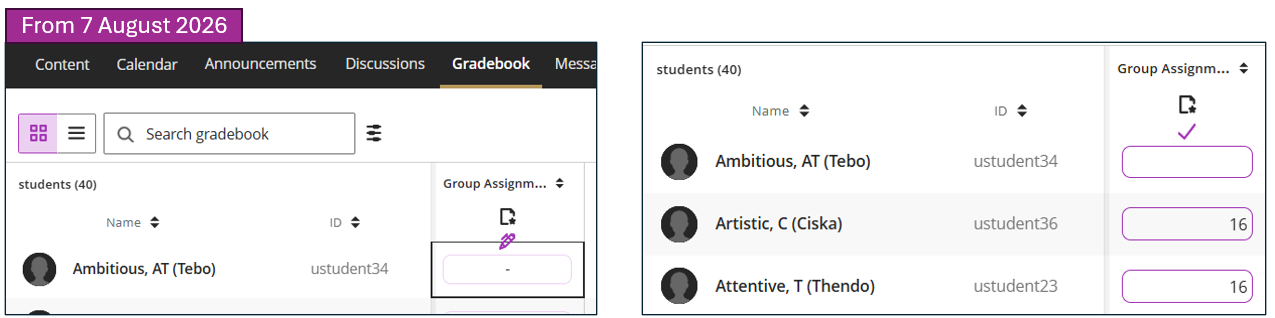
Manual grade entry
| Prior 8 August | From 8 August |
|---|---|
| Must click the cell for each student, press enter to move to next cell. Grade cell menu remains open/obscures the cells beneath – easy to make mistakes. | Hover near top of column → click the edit (pencil) icon → entire column enters edit mode. Type grades directly into cells. Press Enter to advance to next student; click the checkmark or press Esc to exit edit mode. |
Keyboard navigation
| Prior 8 August | From 8 August |
|---|---|
| In grid edit mode, the Enter key moves to the next student; however, cell menus sometimes remain open, blocking the underlying cells. | Enter key advances to next student Esc exits edit mode. |
What ‘post’ looks like
| Prior 8 August | From 8 August |
|---|---|
| Non-actionable "Posted" labels are shown in column headers menu, and green "Posted" text appears below each posted grade in the grid. | The actionable column header count indicates the number of grades awaiting posting; click it to post the grades. Individual posting status visible in the Grade Details panel when you click a cell. |
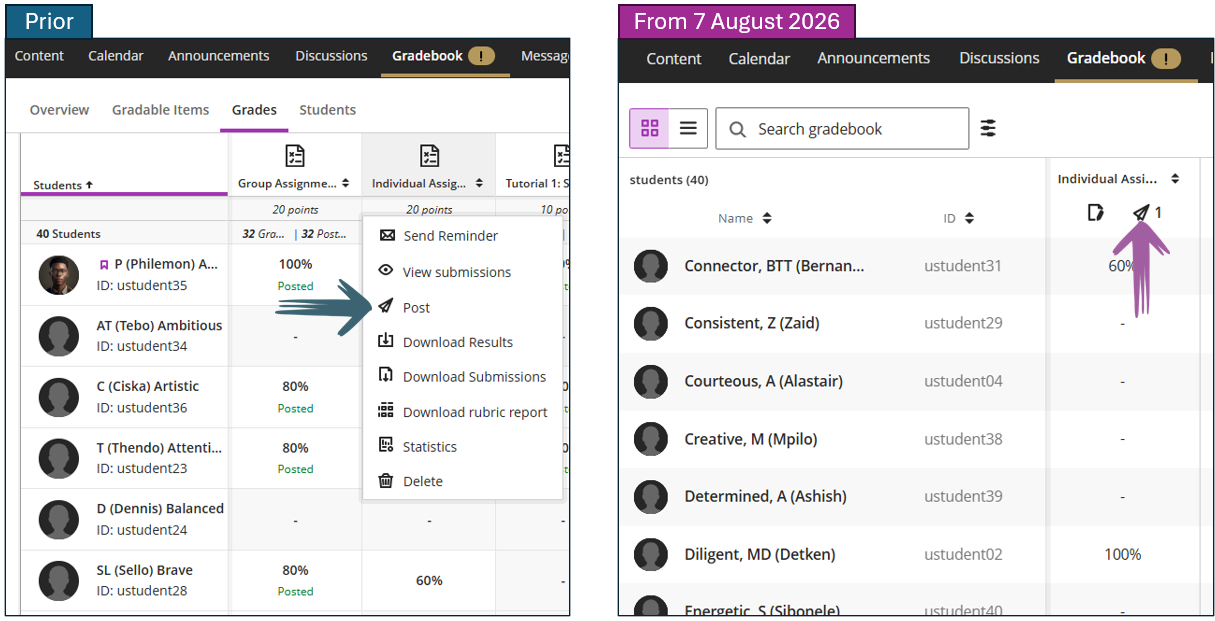
Post all grades
| Prior 8 August | From 8 August |
|---|---|
| Post from gradable items or flexible grading. | Post from the column header (paper airplane icon), from flexible grading, or from To Do panel — multiple paths. |
Override grades
| Prior 8 August | From 8 August |
|---|---|
| Click cell → options appeared — could override from grid and from flexible grading. | Hover over the top of the column and click the pencil icon to enter edit mode, then type directly into the cells. Grade overrides remain available through Flexible Grading. |
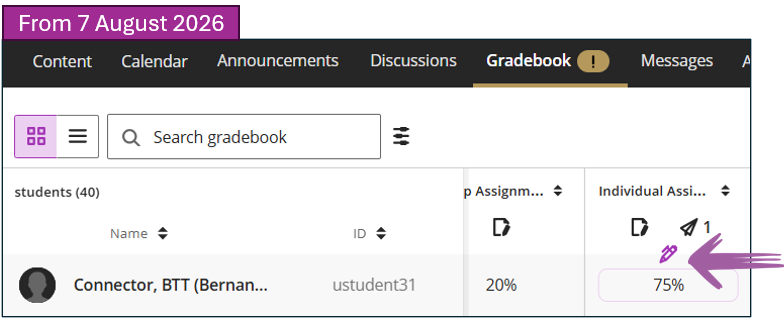
Grade Details Panel (New)
The Grade Details panel is one of the most significant additions. When you click on any cell in the gradebook, this panel opens on the right — keeping the grid visible while you work.
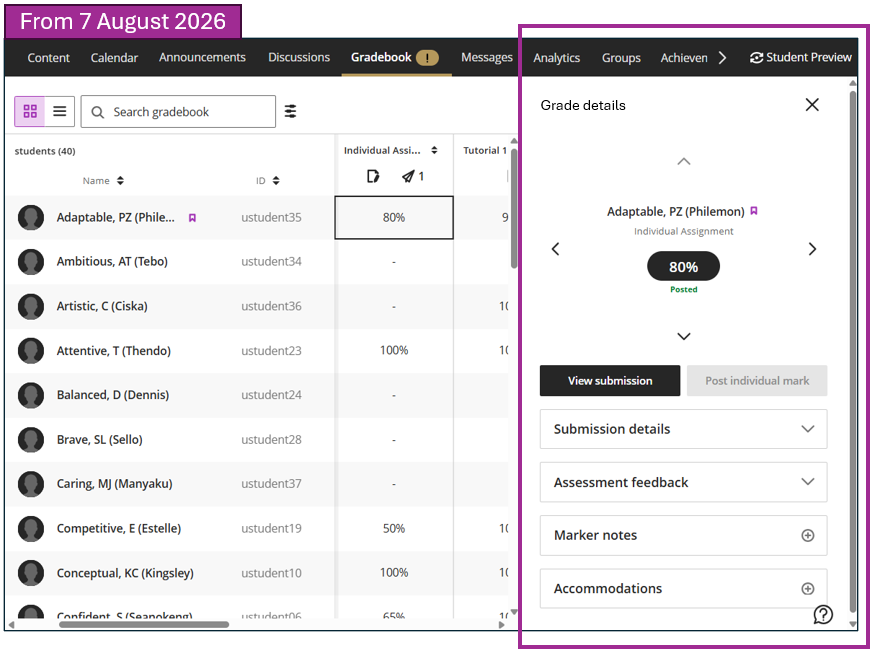
From a cell click
| Prior 8 August | From 8 August |
|---|---|
| Drop-down menu with limited, inconsistent options between cells. Required many clicks to accomplish tasks. | Grade Details panel shows student name, gradebook column name, grade, posting status, submission details, feedback, grader notes, accommodation options — all in one place. |
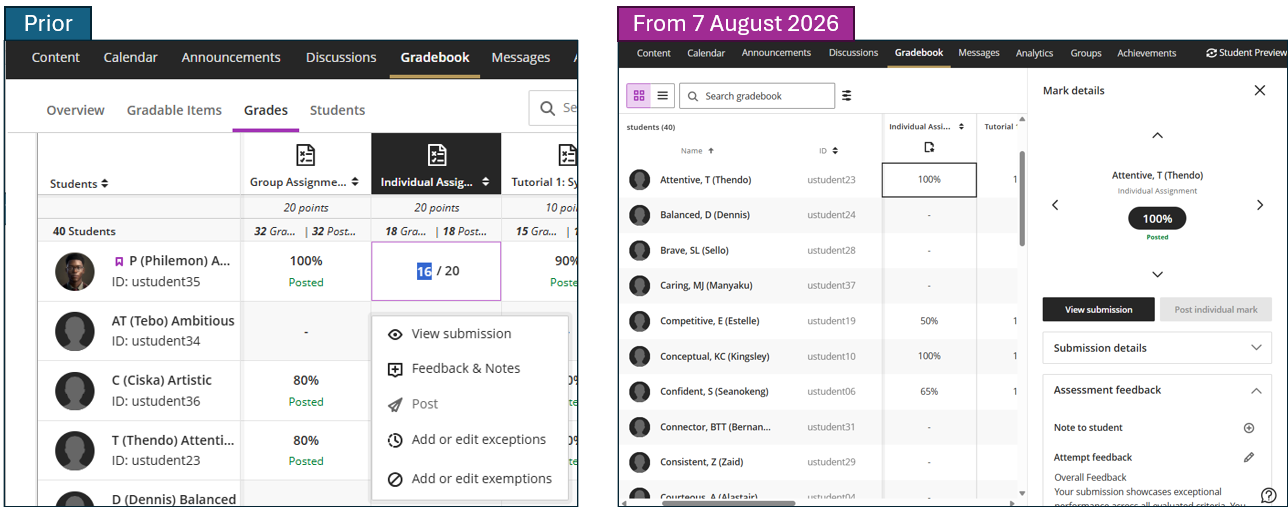
| Image | Description |
|---|---|
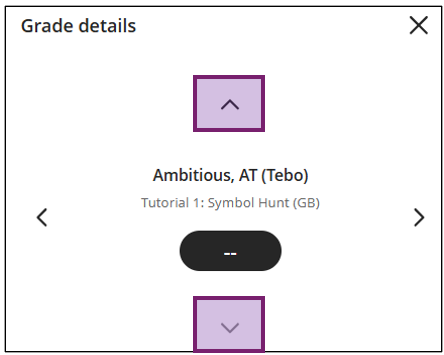 |
The up and down arrows will take you to the next and previous student's information. |
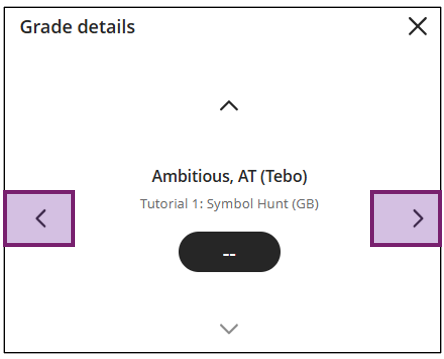 |
The left and right arrows will take you to the next and previous assessment. |
Assessment feedback
| Prior 8 August | From 8 August |
|---|---|
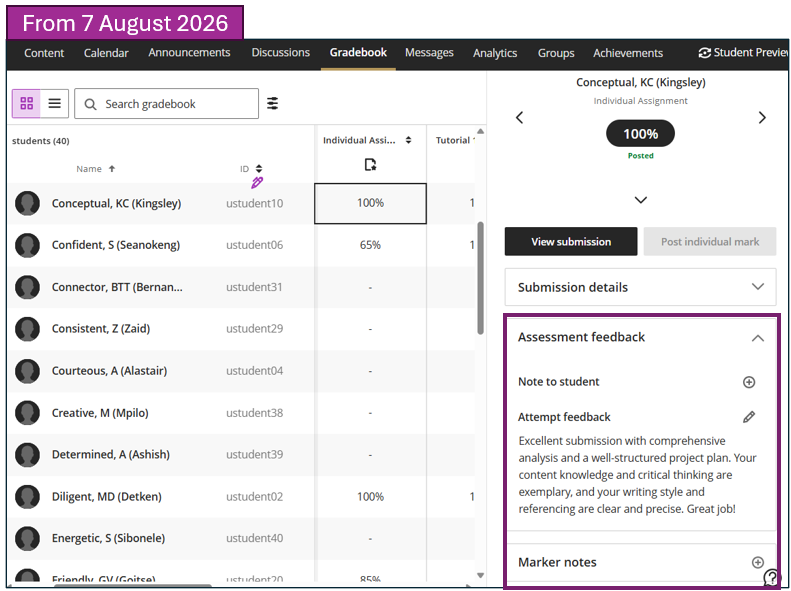
| Had to navigate into flexible grading to add or edit feedback. Once there, hard to check if feedback existed | View, add, or edit assessment feedback directly from the panel. Feedback is synced with flexible grading — changes appear in both places. |
Overall feedback and grader notes
| Prior 8 August | From 8 August |
|---|---|
| Overall Feedback is an option, but only for certain columns. There was no way to leave feedback unless there was a submission. Attempt feedback only available in flexible grading. Grader notes wasn’t an option for all cells. | Add / view assessment feedback (Overall Feedback and/or attempt feedback) from the Grade Details panel. Add private grader notes from the Grade Details panel — no need to open the submission. Note: grader notes are not visible to students. |
Post individual grade
| Prior 8 August | From 8 August |
|---|---|
| Required navigating to flexible grading. | Post grade with a single click from within the Grade Details panel. |
Unsubmitted students
| Prior 8 August | From 8 August |
|---|---|
| Empty cell vs. a dash not always clear for submissions vs. non-submissions. | Grade Details panel clarifies submission status, grade status, and whether a grade is posted. |
Accommodations, Exceptions & Exemptions
In this improved gradebook there are two types of accommodations:
- Course level accommodations (set up in the course roster) - for the student for the module.
- Assessment level accommodations (this is the exceptions and exemptions that can be granted to a student for a specific assessment).
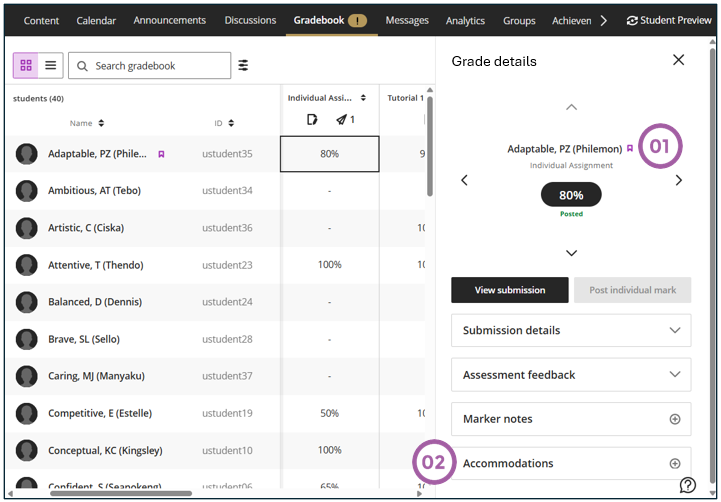
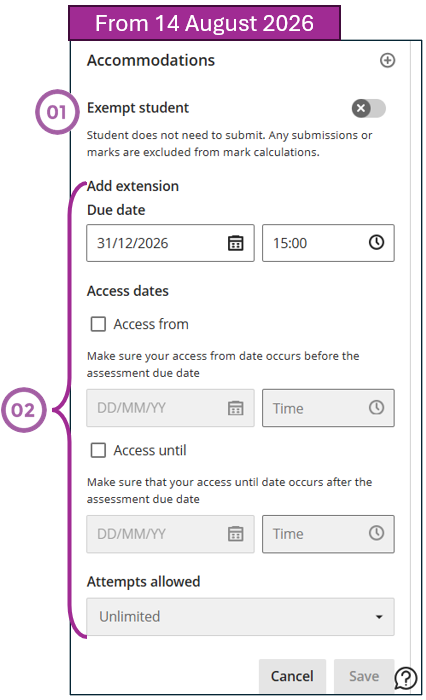
In the improved gradebook, ‘exceptions’ and ‘exemptions’ (assessment-level accommodations nr 2 in the image) are now grouped under a single ‘Accommodations’ section in the Grade Details panel. This section also includes a clear indication for students who have a course-level accommodation (nr 1 in the image). The underlying features are the same — only the label has changed to reduce confusion.
Exemptions
| Prior 8 August | From 8 August |
|---|---|
| Add/edit exemptions from gradebook — could only exempt, not combine with other adjustments. Exempt displays in the cell for students with exemptions. | 1. Exempt a student from the Grade Details panel alongside other assessment-level accommodations. Exempt displays in the cell for students with exemptions. |
Exceptions (due dates, access, attempts)
| Prior 8 August | From 8 August |
|---|---|
| Add/edit exceptions from within an assessment — multiple clicks required. | Add from the Grade Details panel: change due date, access dates, or attempts allowed. |
Refer to number 2 in the image above.
What Hasn’t Changed
The following continue to work exactly as they do today:
- All gradebook columns, categories, and overall grade calculations
- Grade schemas and grading settings
- Flexible grading (opens and works the same)
- The List View / Gradable Items (no changes)
- Course-level accommodations
- All assessment types: assignments, tests, forms, journals, discussions
- Anonymous grading workflows
- All existing grades and submission history.