Watch this video to explain how to create discussions:
You can create discussions in two locations within your course:
- Directly on the Course Content page to allow students to view the discussion in context to other materials.
- On the Discussions tab. Click on Discussions on the navigation bar to open the course discussions page:
a. Select the plus sign in the upper-right corner to open the menu.
b. You can add discussions and organize them with folders.
Graded Discussions: Second due date
Instructors can set two separate due dates with distinct participation requirements for Discussions, offering clearer expectations and more structured engagement. Students benefit from transparent progress tracking and updated indicators as they complete requirements across both due dates.
Use case:
If you’d like students to develop and share their own ideas before engaging with one another, use the Second Due Date option to structure the discussion in two clear phases. Students submit their initial post by the First Due Date, then use the time between deadlines to read widely and, by the Second Due Date, contribute only peer replies (not new arguments), which supports more equitable participation and more coherent dialogue.
This two-step structure also aligns well with Social Presence in the Community of Inquiry (CoI) framework, which emphasises learners being perceived as “real people” through affective expression, open communication, and group cohesion. By separating “posting” from “replying,” you create space for more intentional, respectful responses (open communication) and for students to acknowledge, build on, and connect ideas across the group (group cohesion), rather than racing to post and reacting immediately.
The success of this graded discussion will depend on clear instructions, for example:
Welcome to our Week 4 discussion! This activity has two parts with two separate due dates:
- Your Initial Post (Due Thursday, 11:59 PM): Please post your initial 250-word response to the prompt below, sharing your own unique ideas.
- Your Peer Replies (Due Sunday, 11:59 PM): After the first deadline, read through your classmates' posts. You are required to write at least two thoughtful replies (minimum 100 words each) that build on their ideas, ask clarifying questions, or offer a respectful counter-argument.
Take these steps:
- Go to the Discussion.
- Access the Settings.
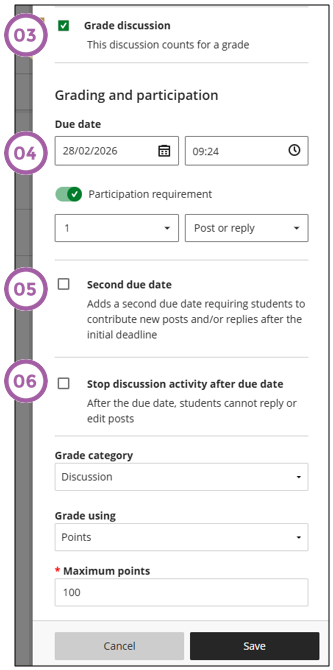
- Ensure that the Grade discussion option is ticked.
- Add the first due date.
- To add the second due date, ensure that you tick the option "Second due date" and add the date and time.
- Stop discussions - allows you to stop the students from responding to the discussion. They will still be able to read all the posts.
Allow students to create discussions
You can allow students to create discussions that appear in the list on the Discussion Tab, with the label Created by student.
- Select the gear icon to open the Discussion Settings panel.
- Tick the option to allow students to create discussions
- Save.
You can turn this setting on and off at any time.
The quality of the first post in a thread influences the thought level of subsequent postings. A carefully worded discussion question is perhaps the most important factor in using discussions to satisfy your learning objectives.
Read more ...
Anonymous discussions
When you need to allow students to share their opinion without getting judged, you can tick this setting to allow for anonymous discussions.
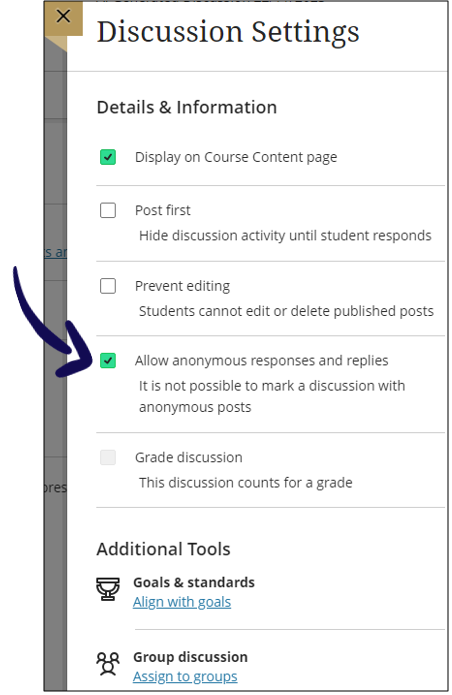
Note that you cannot grade an anonymous discussion.
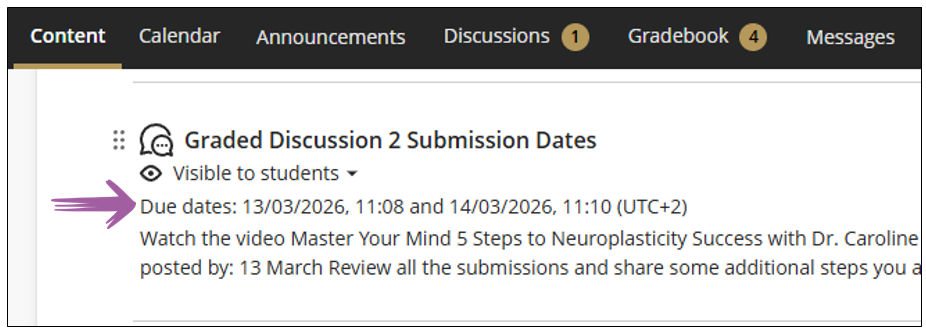
Student view: Second due date
This is how the due dates will display for the students:
Credit to Blackboard Help