When copying questions and answers (distractors) from a formatted Word document, please ensure that all text formatting is removed before pasting. To do this, use one of the following methods:
- Option 1: Right-click in the answer box and choose “Paste as plain text.”
- Option 2: Save the entire Word document as a .txt (plain text) file, then copy and paste from that text file into the answer boxes.
This will ensure that hidden formatting does not reveal the correct answers to students.
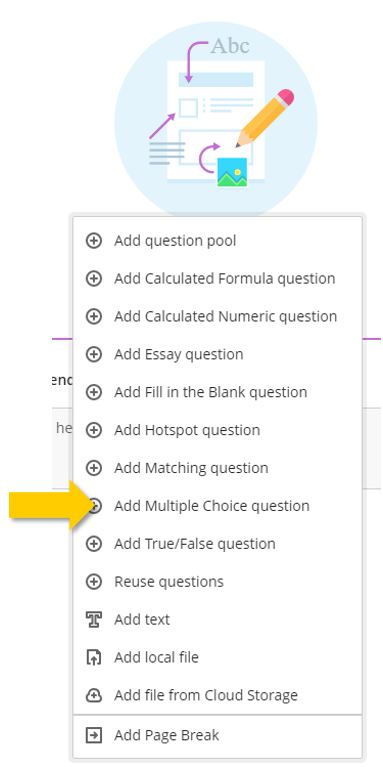
You can create the following question types:
Multiple choice (ONE correct answer)
With Multiple Choice questions, students select one correct answer from several choices. Students aren't told if they need to choose one or multiple answers.
Multiple answer (More than one correct answer)
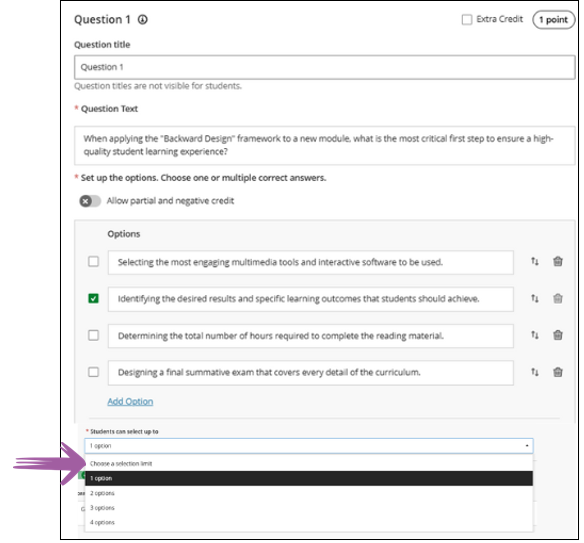
To create multiple answer questions, you select Multiple choice and choose multiple correct answers to be able to provide partial credit.
When the student takes the assessment, the system enforces the instructor’s selection limit.
The default is:
- 4 answer options
- partial/negative credit is off (no additional changes made to partial/negative credit for this release)
- students can select up to 4 answers
- if additional answers are added, selection limit remains at 4
- if answers are removed, instructor must select the selection limit.
Instructor View
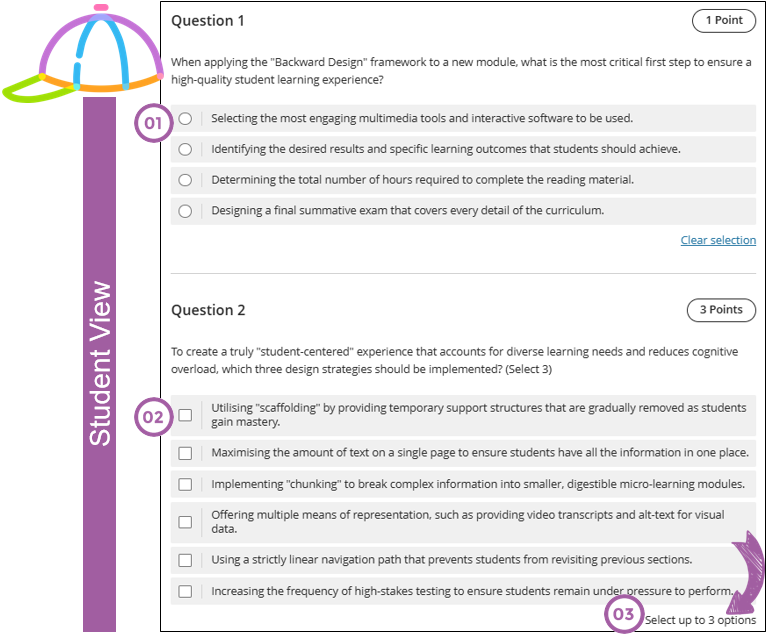
What does the student see?
- One answer radio buttons
- Multiple answers tick boxes
- Indication of the number of correct options.
Partial credit limits: range of –100% to +100%
The system allows instructors to enter any partial credit value for each option within a range of –100% to +100%. Validation continues to warn instructors if total values exceed 100%, but it no longer blocks question setup. Instructors may now also enter positive credit values for options that are not marked as the correct answer. The total partial credit value for correct answers should be at least 100%, and it may exceed 100%.
Negative marking continues to operate when enabled. Instructors can adjust credit values during regrading as well.
Use case
When you allow this type of partial credit scoring, please provide detailed, correct and incorrect feedback per question.
Credit to Blackboard Help