Using Poll Settings
Use Poll Settings to customise how students answer and how the poll results are presented.
You can configure options such as:
Question type
Answer options
Correct answer
Scoring
Time limit
Results display
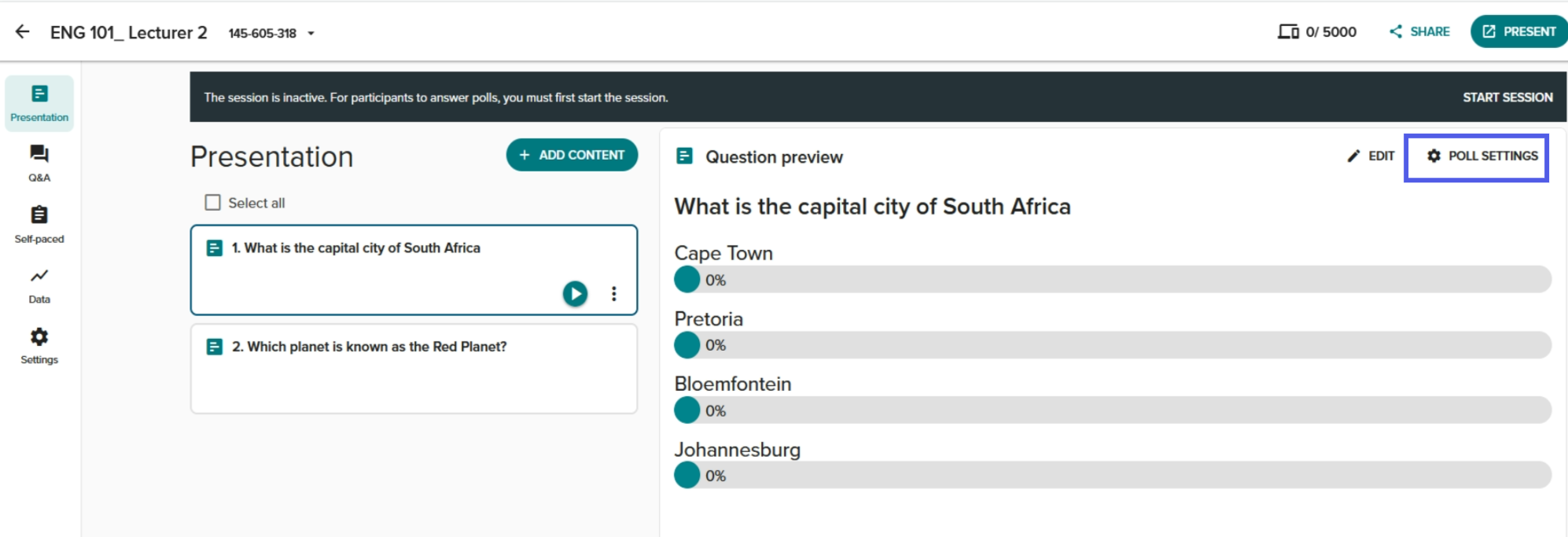
To edit Poll settings, click on POLL SETTINGS.
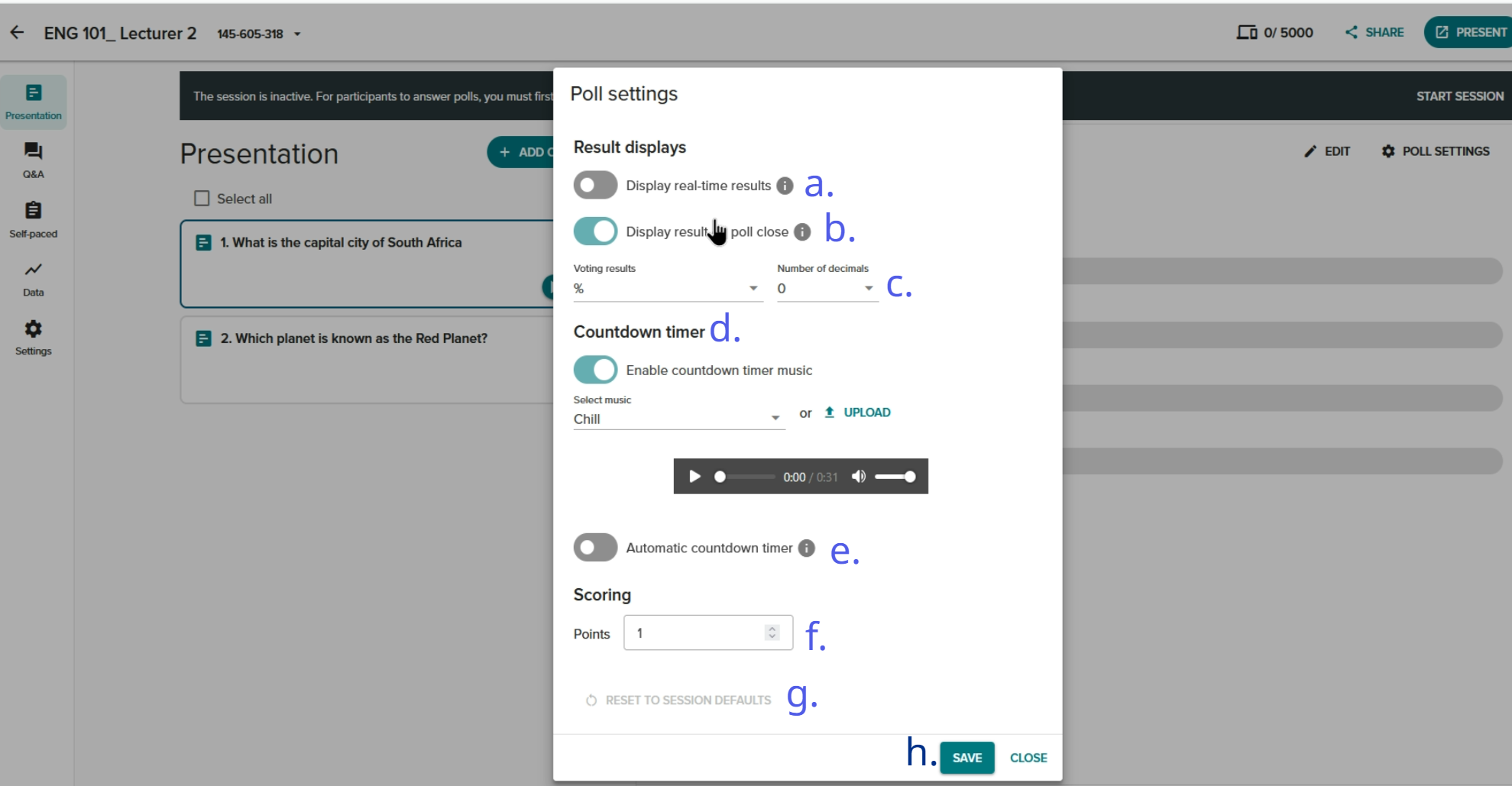
Results display:
a. Display real-time results - Shows the poll results as soon as the poll opens and dynamically updates the results when votes are received.
b. Display results on poll close - Automatically shows the poll result when the poll closes, rather than requiring an extra action to display the results.
c. Voting results - You can choose to show results as percentages or points (you can also select the number of decimals).
Countdown timer:
d. Enable countdown timer music - You have the option of selecting the music or uploading your own audio; the music will play when the poll is open if enabled.
e. Automatic countdown timer - You can set the number of seconds students will have to answer each question; the default is 30 seconds.
f. Scoring - It is recommended that you set the scoring in clickUP once you have linked the session.
g. Reset to session settings - You can also apply these settings at the session level.
h. Save - Click on Save to apply the settings.
Credits to Vevox Helpsite