Learn how to integrate Vevox into your clickUP module using the Content Market. This step-by-step guide explains how to create a Vevox session, link activities to your course, and configure student identification and scoring options.
Linking Vevox in your clickUP module
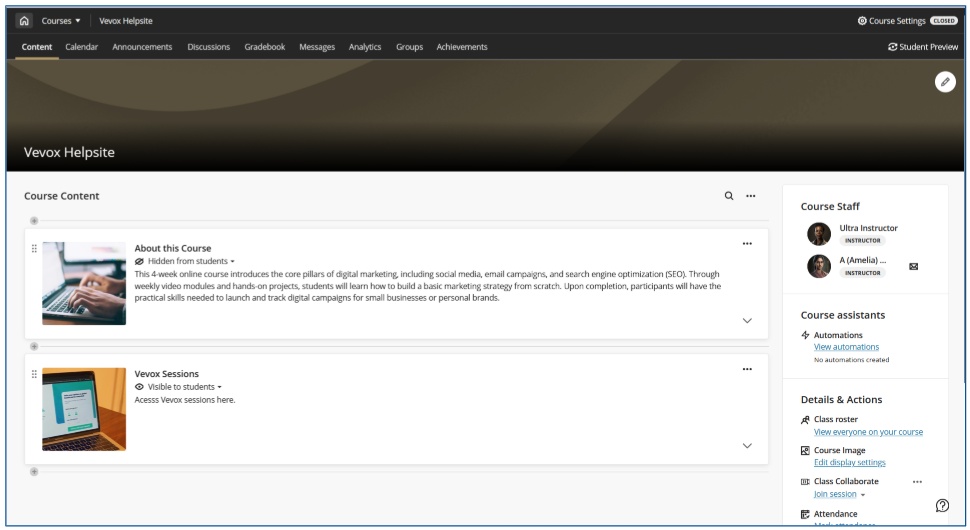
Log in to clickUP and access your clickUP module.
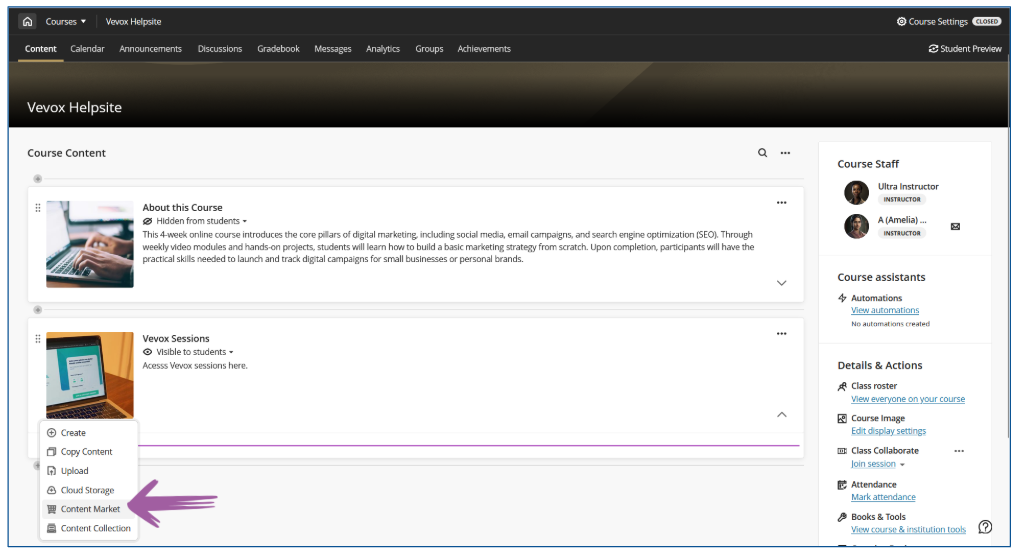
Click on the plus (+) sign and then click on Content Market from the list
Hint: Create a Learning Module named Vevox
This will allow instructors and students to easily access the sessions
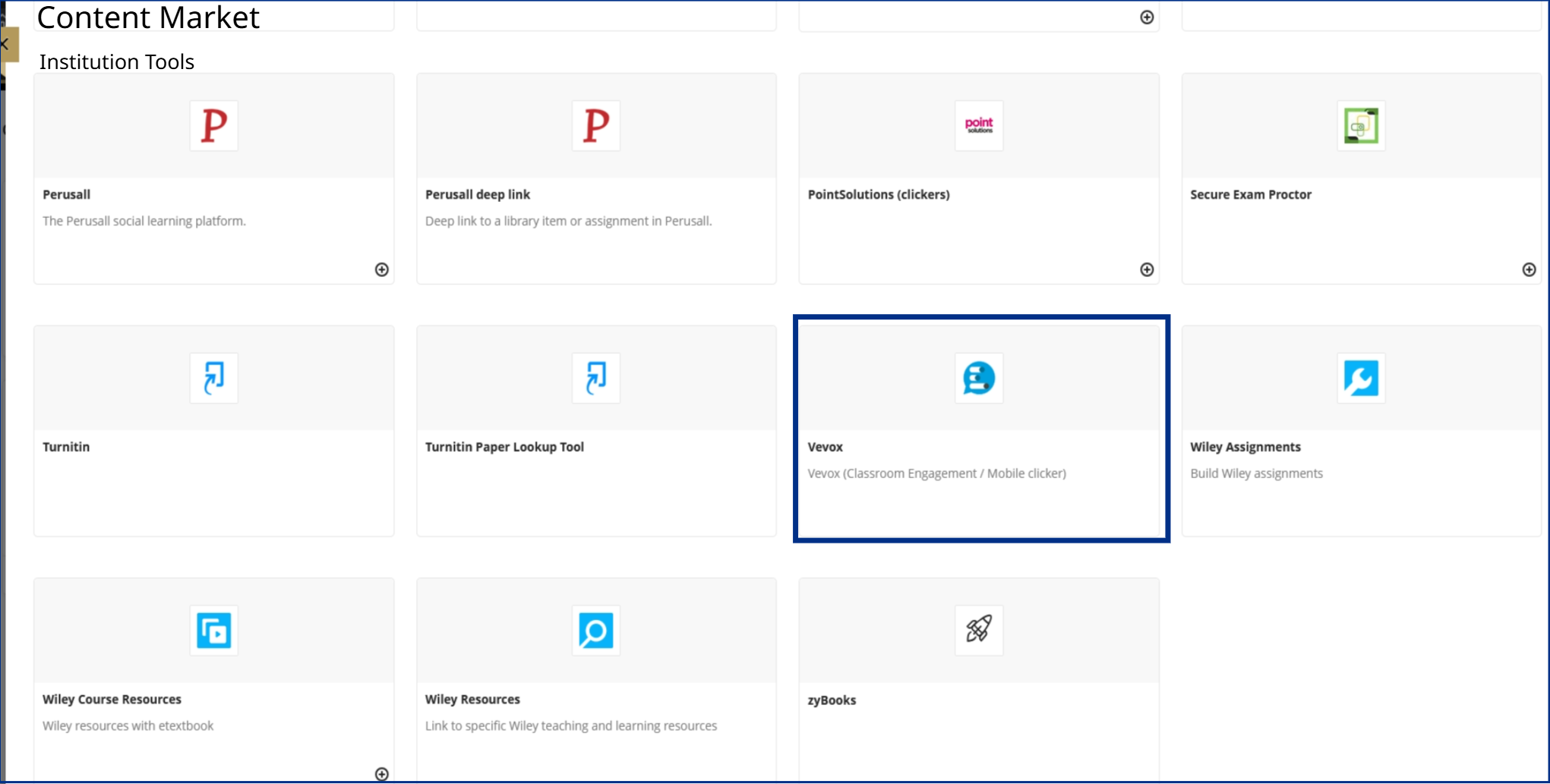
On the Content Market Page, scroll down, locate the Vevox LTI, and click on it.
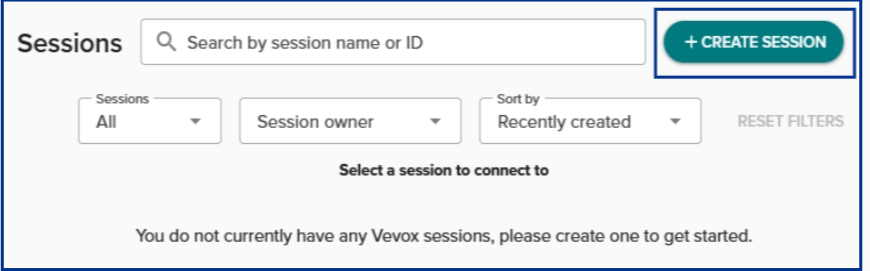
Click on Create Session.
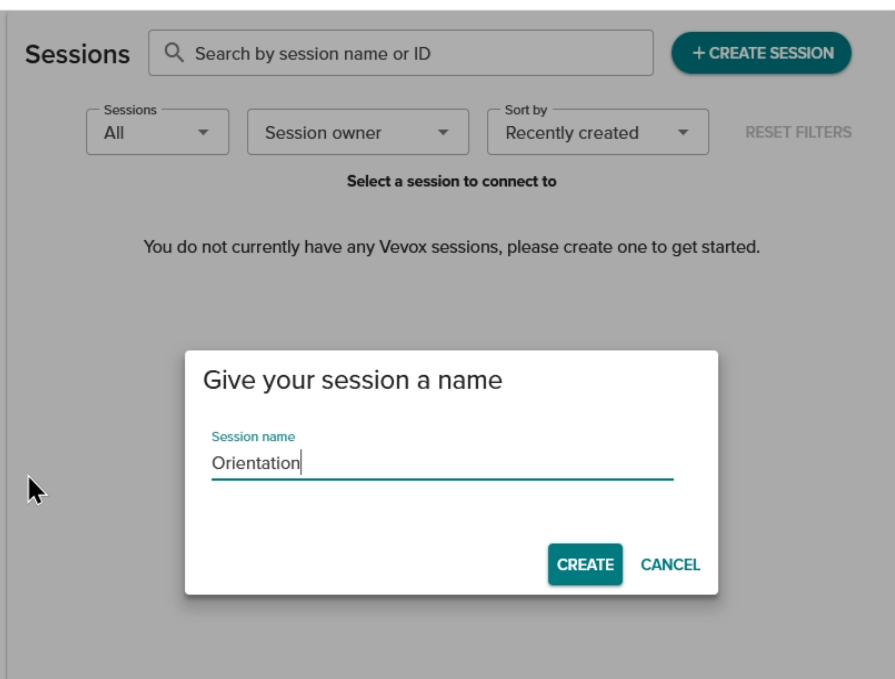
Give your session a name, then click CREATE.
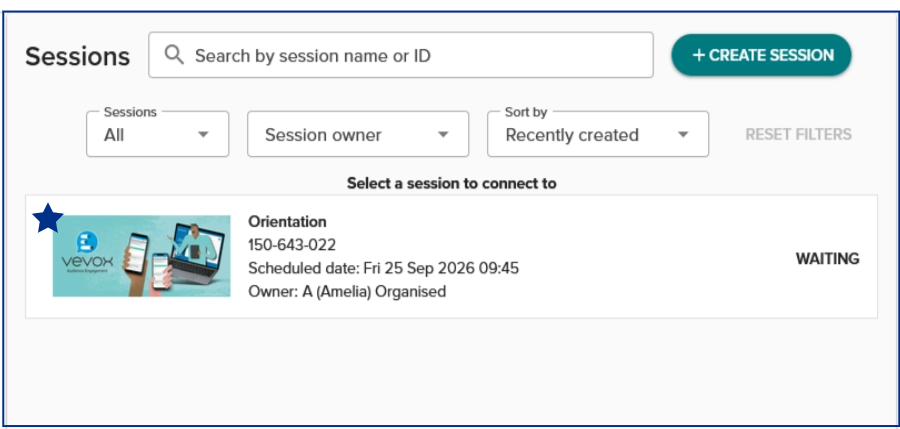
To link Vevox to your clickUP module, first select an activity. To do so, click the session name.
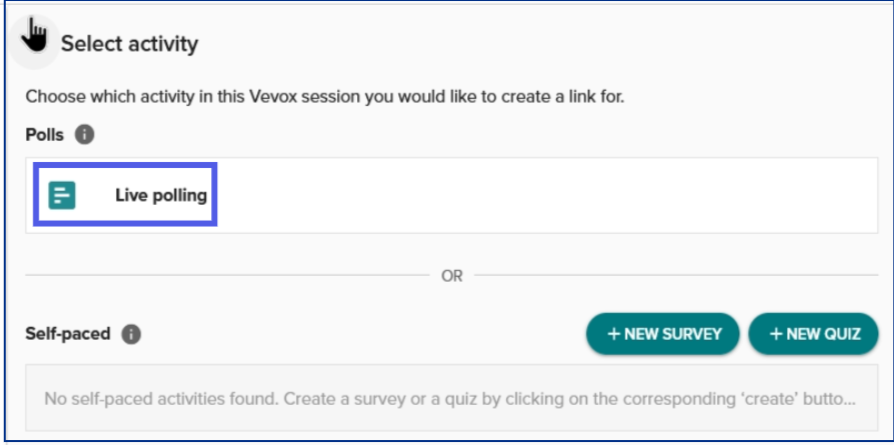
You now have the option to choose which Vevox activity you would like to link to your course. You can choose between ‘Live polling’ or self-paced ‘Quiz’ or ‘Surveys’. Click on Live Polling.
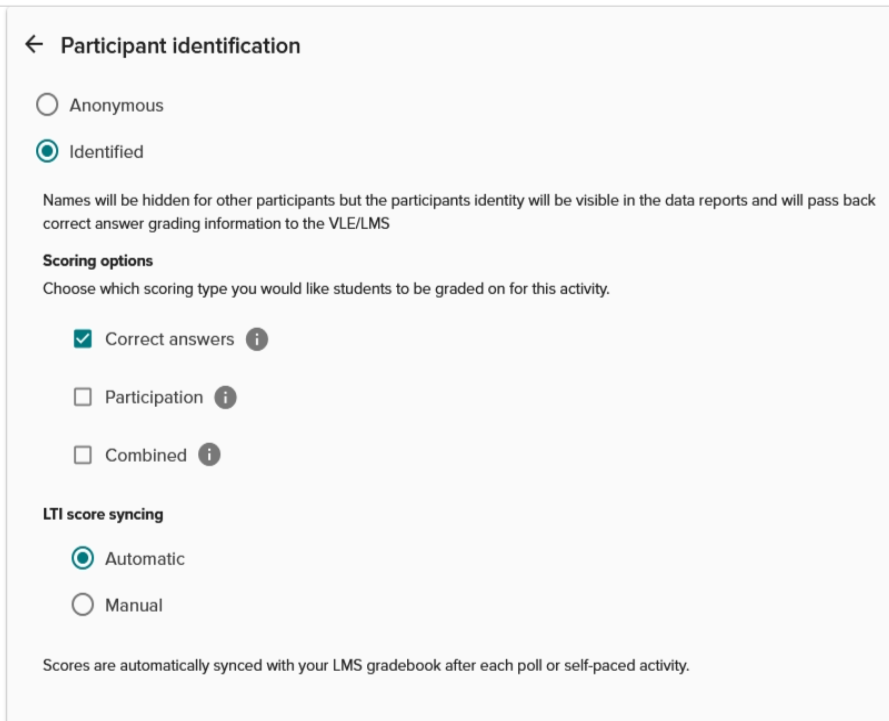
8. Next, you can choose the scoring and identification options you would like to use:
Anonymous - This will be a completely anonymous session. With anonymous sessions, it is not possible to send any scoring details back to clickUP. An anonymous session will provide a convenient way for students to access Vevox within clickUP to participate.
Identified: the default option. This will allow you to pass student scores back to clickUP from Vevox.
How students access Vevox session:
Students will access vevox sessions by going to the link you have added in clickUP. (Students will automatically be authenticated when they log into clickUP.)
There are 3 different scoring options you can use:
Correct answers - This will create a column in the Gradebook, and students will be graded on the number of questions they answer correctly. This option is only available if you have questions that have correct answers assigned to them.
Participation - This will create a column in the gradebook, and students will be graded on the number of questions they answer, regardless of whether they answer correctly. This option can be used for any type of questions you have (e.g., correct answer questions or opinion-based questions that do not have a correct response). Participation scoring provides a way to track whether, and to what extent, students have been engaging with the Vevox activity.
Combined - This option will create one single column in the gradebook with a combined score. You can move the slider to adjust the proportion of the score that should be weighted towards participation and correct answers.
Scoring Options:
It is recommended to select just one of the scoring options however, it is possible to select both Correct and Participation at the same time if you want to create 2 scoring columns in the gradebook. It is also possible to select none (if you don’t want to pass any scoring information back to clickUP).
LTI Score Syncing is the process of syncing scores to the clickUP Gradebook.
The default and recommended option is automatic. This means that scores are synced from Vevox to clickUP immediately when the activity is completed. For example, in a self-paced activity, it is as soon as the student submits their self-paced survey or quiz. In a live polling activity, this is when the poll closes.
The manual sync option means that scores are never passed from Vevox to the clickUP gradebook unless you actively trigger the synchronisation yourself. This is done from the data page in the Vevox dashboard when you click on the 'LTI Sync' option in the top right.
9. Once you have selected the identification options, click on DONE.
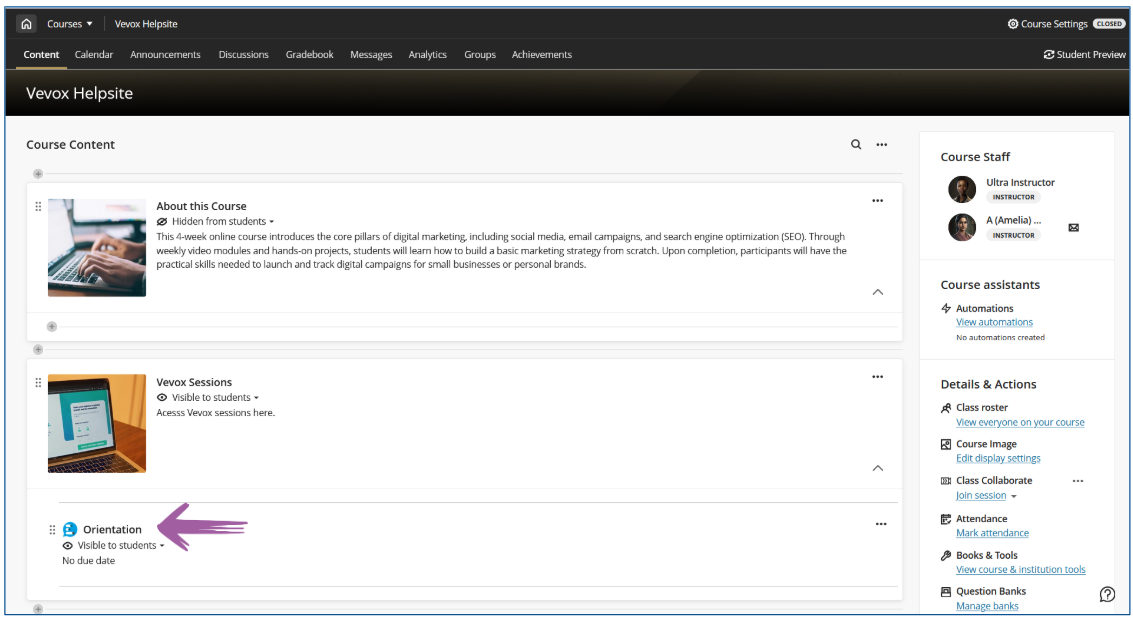
Your Vevox session will be added/synced to your clickUP module. Next, you will add Content to your session.