Once you are done adding the interactions to the video, go through the additional settings.
How to send the score to the LMS
From the additional settings:
-
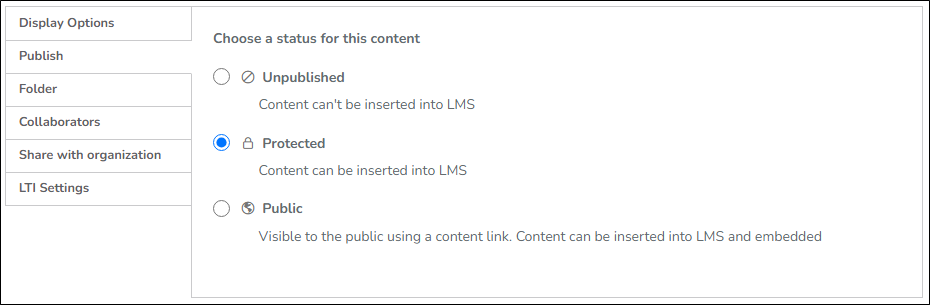
Choose Publish and ensure that the Protected option is selected.
-
Choose LTI settings and indicate which attempt's grade should be stored to the clickUP Gradebook.
This enables the grades to be synced to the Gradebook of the module where the video is inserted.
- Display Options: This will determine how the video will appear once published in clickUP
*** Publish**: Here you select the status for your content, please leave the default setting on Protected setting (Content can be inserted into LMS). - Folder: This helps organise your content in the authoring tool.
- Collaborators: This allows you to share your content with other users at the University.
- Sharing with organisation: Content shared within organization folders is available for everyone in the organization to view and clone.
- LTI settings: This allows you to choose which score will be saved in the clickUP Gradebook
Note: We encourage interactive videos to be only used for formative assessment purposes, not high-stake assessment. - Save and Insert: When you click on save and insert, the interactive video will be inserted in your clickUP module (You still need to edit the settings of the inserted video in clickUP).
- Save: This updates the video/content in the H5P platform and takes you to the Preview mode.
After verifying the additional settings, click on Save and Insert. The LTI redirects back to clickUP and the link to the Interactive video will be Visible to Students by default.
Cannot see the interactive video?
If the link does not appear in the content area, refresh your browser by pressing F5 on the keyboard.