Individual students may have specific needs or encounter situations that necessitate tailored actions from their lecturer. clickUP Ultra supports these needs through accommodations, exceptions, and exemptions.
- Accommodations are set for individual students who need additional time for all due dates or time-limited assessments, as specified by a doctor and the Disability unit. Read more...
- Exceptions are set for an individual student where special circumstances require additional attempts, rescheduling due dates, or extended access for a specific assessment. For example if a student loses connection during a test. Read more ...
- Exemptions are set when a student is excused from an assessment and the marks should not be included in gradebook calculations. For example if a student was hospitalised and unable to complete the assessment(s) they missed. Read more ...
You can create an exception or exemption for:
- an individual student,
- a group of students.
An exception can be set as
- additional attempts,
- rescheduled due dates, or
- extended access.
Individual exceptions for extended access are only possible if you have set release conditions (show on and hide after dates) on the assessment.
Exception or exemption can be created from different places in clickUP:
From assessment submissions
- Click on the name of the assessment.
- Click on the Submissions tab at the top.
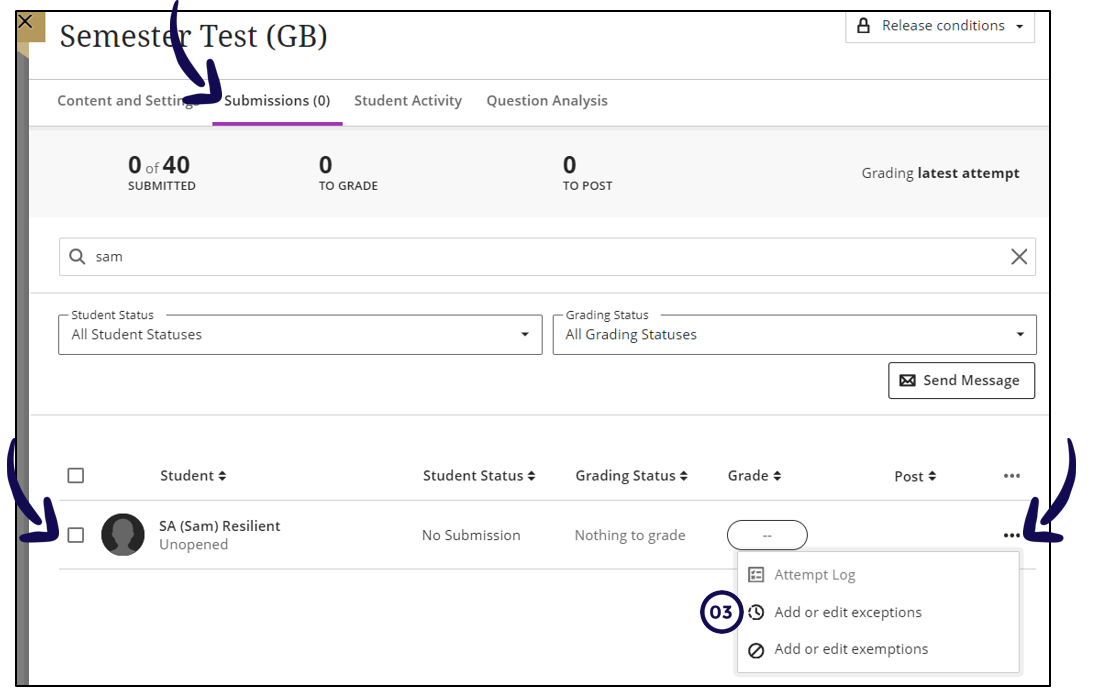
- Find the student/group for which you want to add an exception and click on the Ellipse (to the right of the screen).
- Click on Add or Edit Exceptions.
- Change the settings that are needed on the Exceptions panel.
- Save.

From the Gradebook List view
- Click on Gradebook tab at the top.
- Click on the List view icon.
- Click on the relevant assessment's name.
- Find the student/group for which you want to add an exception and click on the Ellipse.
- Click on Add or Edit Exceptions.
- Change the settings that are needed on the Exceptions panel.
- Save.

From the Gradebook Grid view
-
Click on Gradebook tab at the top.
-
Click on the Grid view icon.
-
Select the student’s assessment cell to display the grade details panel.
-
Select Student Accommodations.

-
Change the settings needed on the student accommodation panel.

-
Save.
Scenario: Set up a test with early access for two students
Dr. Smith is preparing a test for her course. All students will write the test, but two students—Alex and Sam—need to complete it before the rest of the class. To ensure that the test remains hidden from the rest of the students until the scheduled release date, she follows these steps:
-
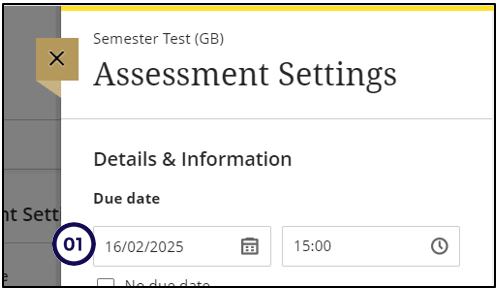
Set the due date for the whole class:
Dr. Smith sets a due date for the test, ensuring that all students have a clear deadline.
-
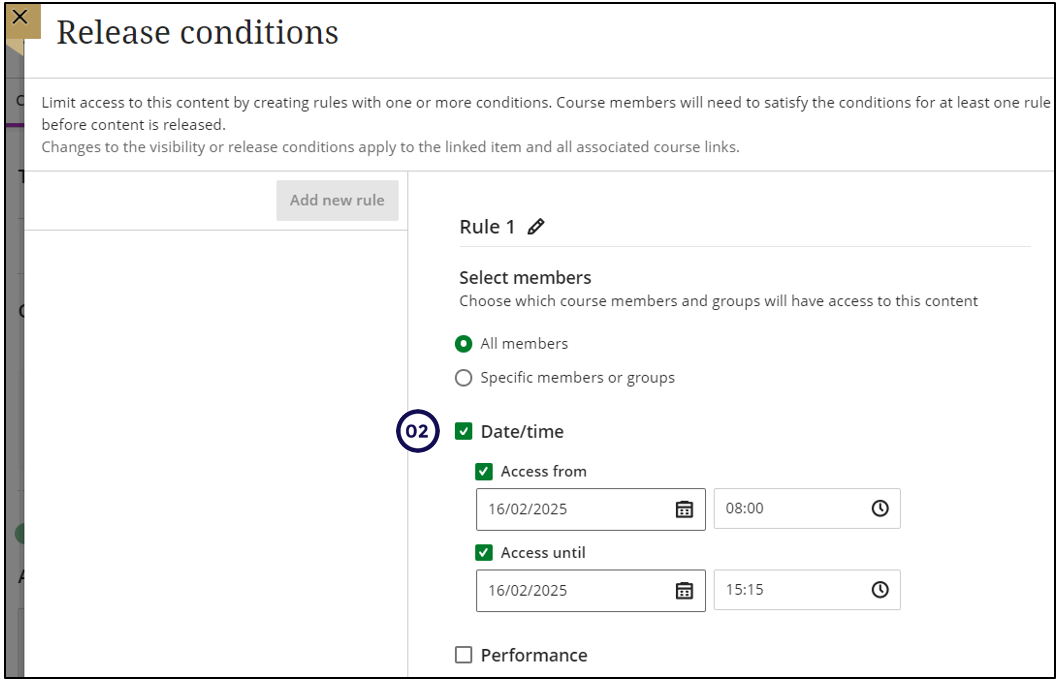
Apply a Release Condition for the Test:
She sets a release condition with a specific date and time when the test will become visible to all students. Until then, it remains hidden from the content page and the gradebook.
-
Set Exceptions for Early Access Students:
Inside the Submissions Page of the test, Dr. Smith locates Alex and Sam and applies exceptions:
-
A different due date for their test.
On the exceptions page, set a unique availability period ("from" and "until" dates) to grant them early access.
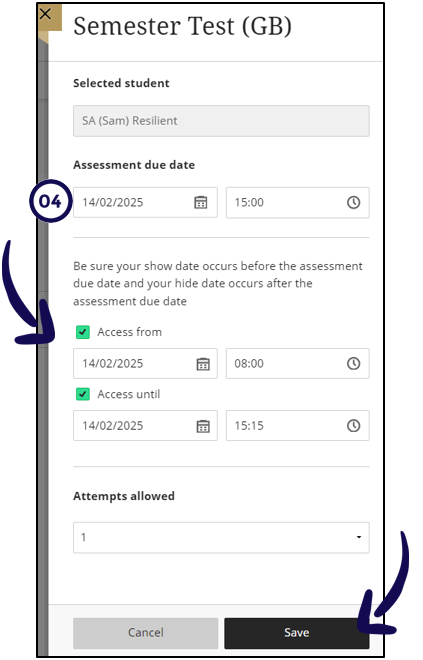
These exceptions override the general due date and release conditions—but only for Alex and Sam.
By following these steps, Dr. Smith ensures that Alex and Sam can write their test early while keeping it hidden from the rest of the class until the official release date.