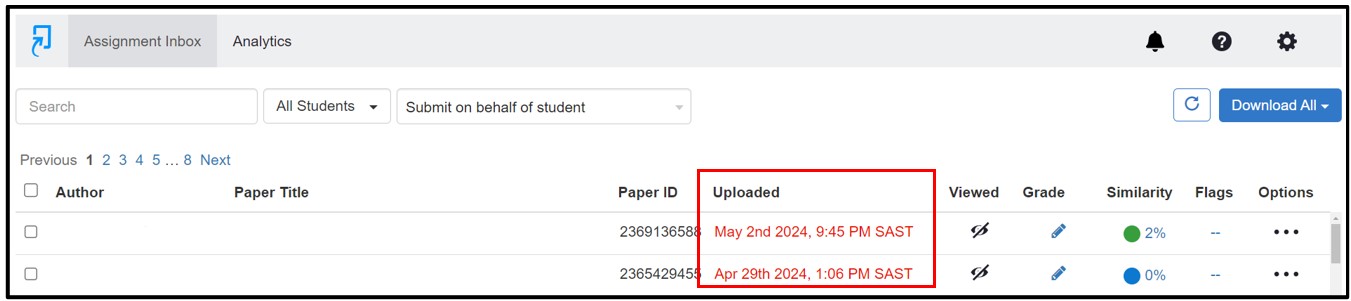
This page provides steps to access submission evidence for clickUP Tests, clickUP assignments, and Turnitin assignments.
clickUP Test and clickUP Assignments
- Go into the Gradebook.
- Click on Gradable Items.
The Gradable Items view provides a comprehensive overview of all the assessments in your module, including the number of submissions made, the number of submissions missing, the category of the assessments, the due date, the grading status, and the posting status.
In this view, you can sort according to Grading Status to track what needs to be done for a specific assessment:
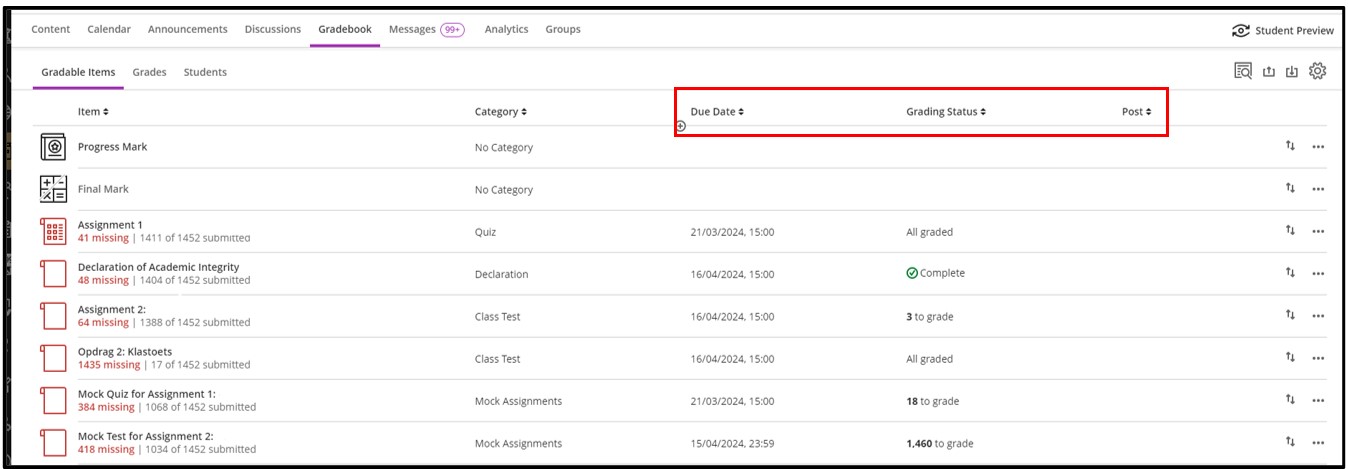
All graded means that all submissions have been graded.
Complete means that all submissions have been graded and posted.
- To investigate a specific assessment, click on the name of the assessment under Item OR click on the ellipsis icon (three dots) and select Edit.
- On the Submissions page inside an assessment, you can sort according to Student Status or Grading Status.
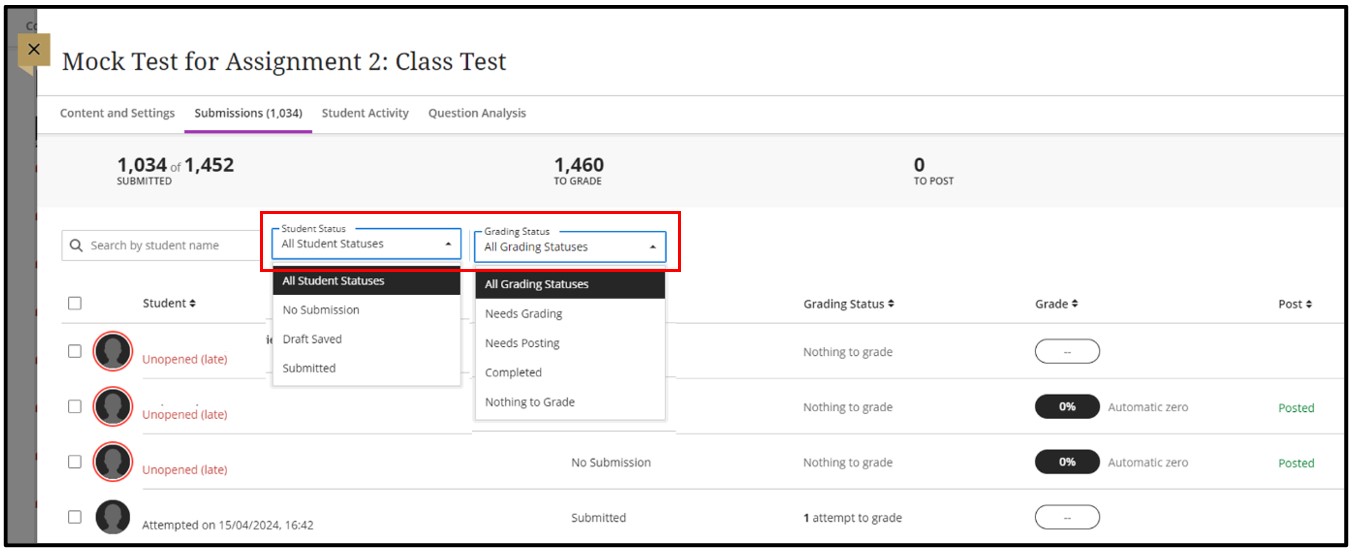
- This view shows a more focused view of the exact student activity regarding attempts, attempt date and time, student status, grading status, grade received, and posting status.
- To open a student’s submission, click on a student’s name. This selection will take you to the flexible grading screen where you can see the submission and grade the submission.
View an Individual Student’s Attempt Log
- Access the Gradebook.
- Select either the Gradable Items or Grades view.
- Select the specific assessment you'd like to investigate and open it by either clicking on its name under Item OR clicking on the ellipsis icon (three dots) and selecting Edit, depending on your view.
- Ensure that you are on the Submissions page.
- Use the search bar to find the specific student you want like to investigate .
- Click on the ellipsis icon (three dots) in line with the student and select Attempt Log.
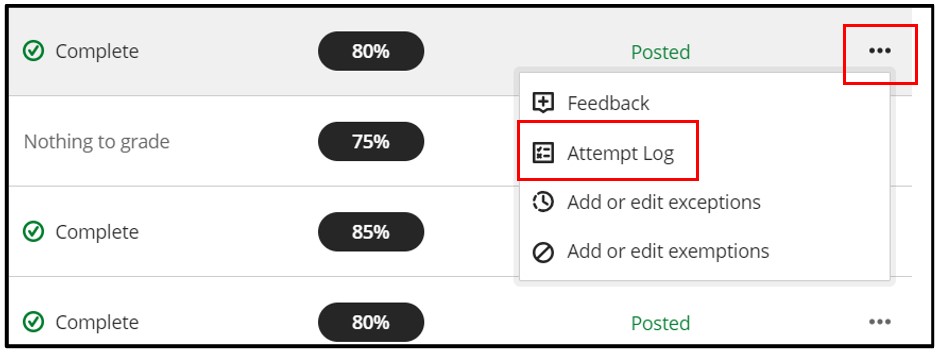
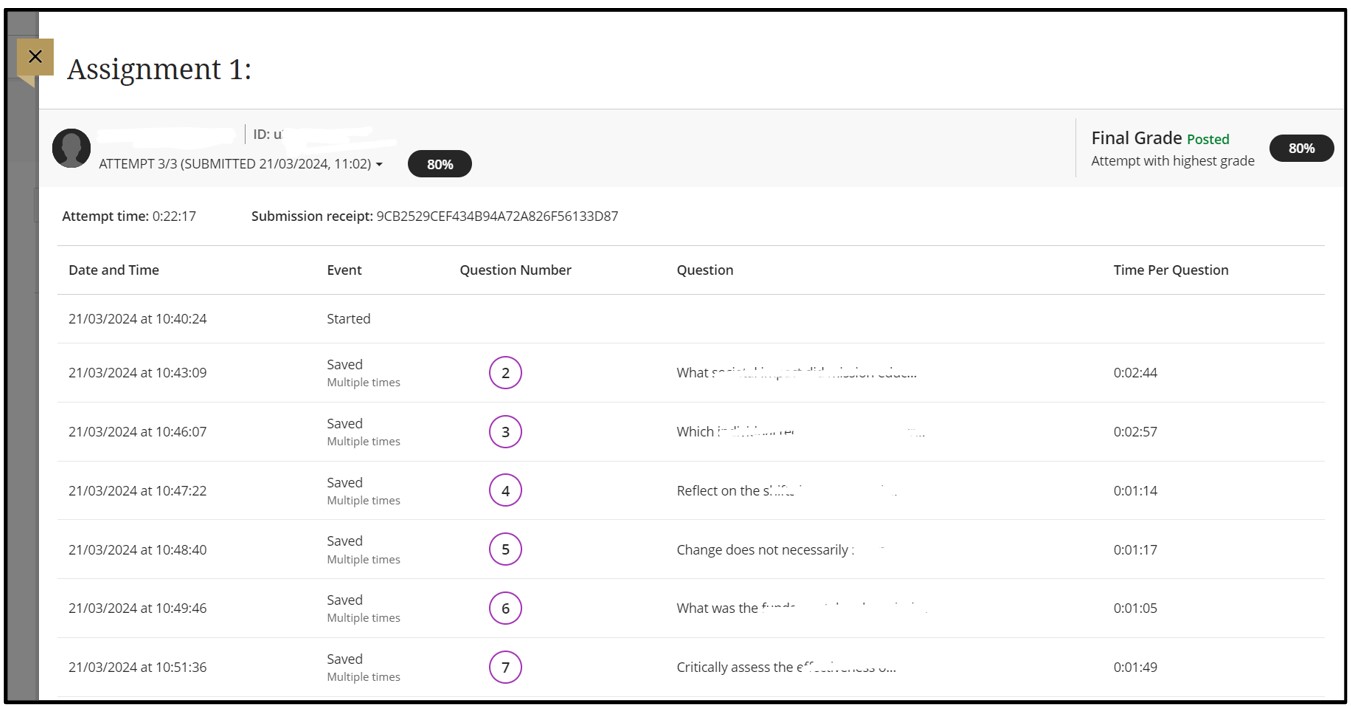
The Attempt Log shows a detailed list of all the interactions a student had with assessment. You can also click the drop-down next to the attempt number to view this for the student attempts.
In the example below, the student used all three attempts that were allowed. It shows the time the assessment was started, when each question was saved, and when it was submitted. You might interpret an unusual gap in activity as a connectivity problem if the student claims to have had one. However, the system can't determine what caused the time gap. The system can only show that the time gap occurred. Be aware that the time spent on a question may include the time the student spent looking at other questions (depending on your set-up) before saving that answer.
Turnitin Submissions
- Go into the Gradebook.
- Click on Gradable Items.
- To investigate a specific assessment, click on the assessment name under Item OR click on the three dots (meatball menu) and select Edit.
- Turnitin will open in a new tab and display the Assignment Inbox, where you can view the Uploaded date and time of a student's submission.