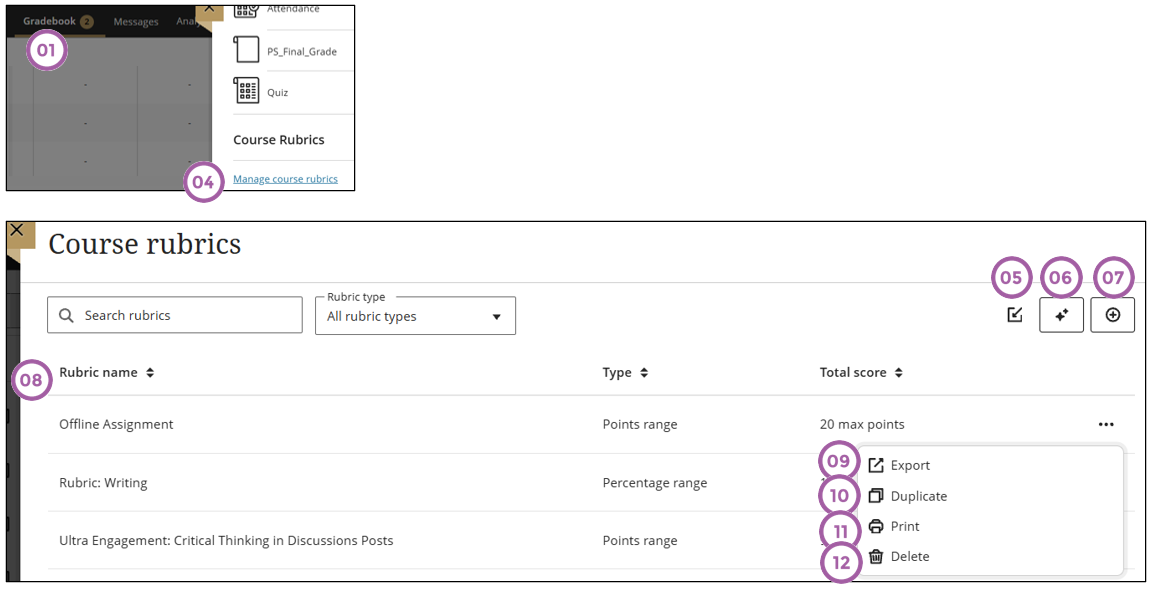
The Course Rubrics page displays all rubrics in your course in a sortable, searchable table. From this page, you can create, generate, copy, edit, delete, import, export, and print rubrics.
Import rubrics
You can import a rubric that was previously exported from Blackboard LMS.
Refer to number 5 above.
Generate rubrics
Use this option to allow AI to generate a rubric for your assessment. Refer to number 6 above. [Read more ...]
Create rubrics
Refer to number 7 above. [Read more ...]
Edit rubrics
If you haven't used a rubric in grading, you can select the rubric title to make changes to the title, rows, columns, and percentages. You can also add or delete rows and columns.
After you use a rubric for grading, you can't edit it, but you can make a copy that you can edit and rename.
Refer to number 8 above.
Export rubrics
You can export a rubric from your course to reuse it in another course. The exported file is a zip file intended for importing into another course and is not a viewable document.
The zipped package gets automatically downloaded to your device when the package is zipped. Refer to number 9 above.
Duplicate rubrics
This option will make an exact copy of the selected rubric. Refer to number 10 above.
Print rubrics
This option will allow you to print a blank rubric. Refer to number 11 above.
Delete rubrics
You can permanently delete a rubric from your course even if you used it in grading and the grades will remain. The grades are no longer associated with the rubric, but now appear as grades you added manually.
To permanently delete a rubric, open the Gradebook Settings panel in the Gradebook.
Refer to number 12 above.