You can create four types of groups:
- Manual assign - use this when you have a small number of students.
- Automatically assign - this is the easiest way to create a large number of groups.
- Self-enrol - used in cases where your students need to select the group they want to join.
- Import from CSV - you can also setup the group allocations using Excel and then import the groups to the clickUP course.
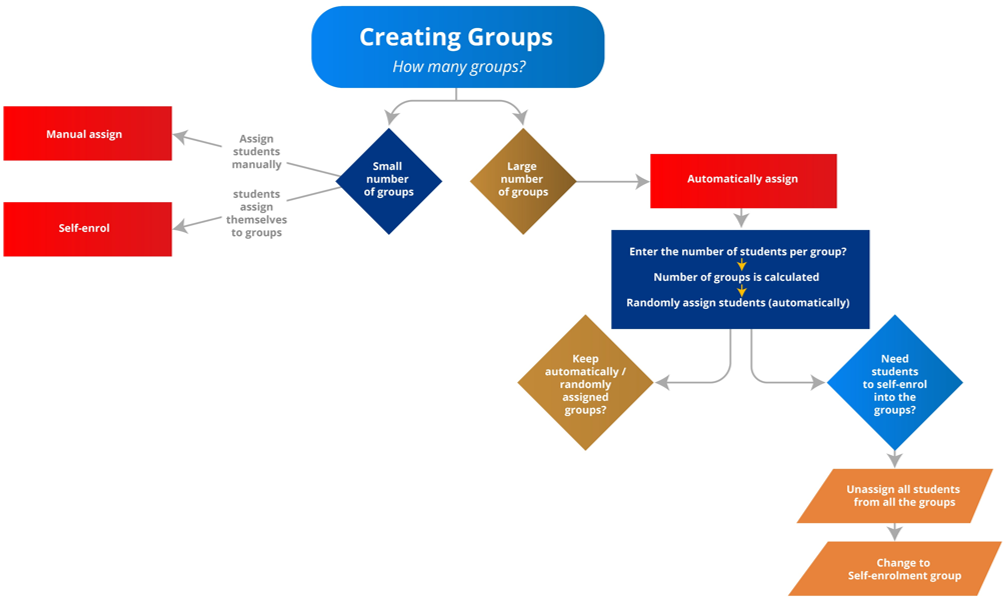
This diagram will guide you as to the type of group set to create:
Core actions and controls behave the same way regardless of group type, reducing confusion and making it easier for instructors to switch between workflows.
Watch this video:
Take note:
- Group tools: Groups must be attached to a group assignment for group members to access the Class Collaborate rooms and conversations.
- Group member visibility:
- For instructor-created groups, groups must be attached to an Assignment, Discussion, or Test to see group member names within the activity item.
- For self-enrolment groups, members will see group member names in Course Groups on the Details & Actions menu.
- Only in automatically assigned groups can you create a large number of groups by indicating the number of students per group.
- If you need to create more than 10 groups with the manual assign or self-enrol options, use the How to create a large number of groups step sheet.
- You will always create a group set and all newly created groups will have the name Group and a number. To have customised names, you will have to either:
- change the name of each individual group or
- use Excel do a bulk change of the default group name to an educationally meaningful name