Sometimes you might receive marks from other assessment tools, e.g. the mark reader. The purpose of this page is to explain how you should change the spreadsheet with your results to import them successfully into the clickUP Gradebook.
When working with the Gradebook, always start by downloading the Gradebook to Excel. This will serve as a backup of your Gradebook.
Scenario: you received grades from the mark readers (external grades). You would like to add these grades on clickUP.
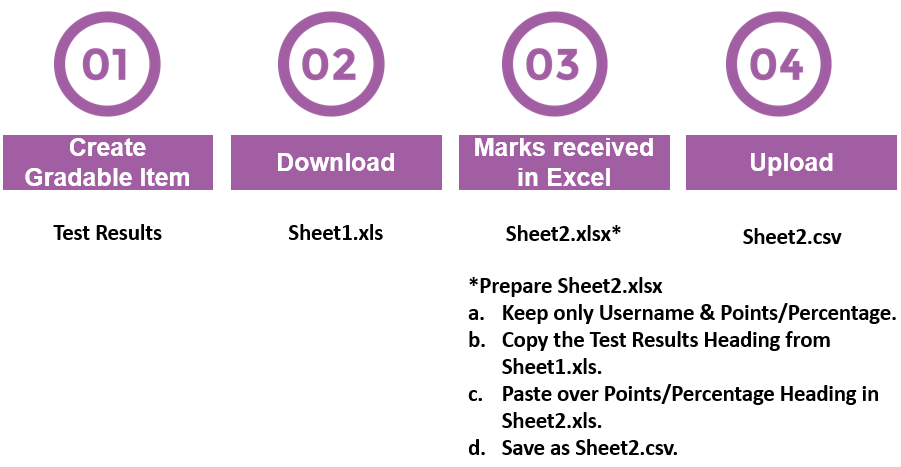
Follow this process:
-
Create the gradable item on the Gradebook, e.g. Test Results.
-
Download only this gradable item to Excel. We will refer to this as Sheet 1.
-
Open the external grades that you received. We will refer to this as Sheet 2.
The results could be in the following format:
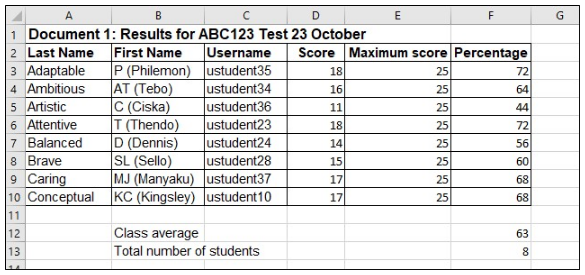
a. Delete all the non-required information:
- header row
- the following columns: Surname, Name, either Score or Percentage (this is dependent on the specific column you want upload) and Maximum Score.
- any bottom rows, e.g. rows that contain the Class average and Number of students.
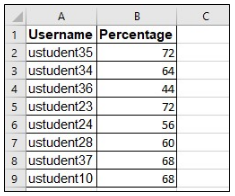
The only columns that should remain are Username and Score/Percentage (depending on which one you want to upload):
b. Open Sheet 1, copy the exact heading of the gradable item as it will be on the clickUP Gradebook, e.g. Test Results [Total Pts: 100] |631672.
c. Go to Sheet 2 and replace the Percentage or Points heading with the Test Results heading.
d. Save document 2 and upload to the Gradebook.
This is an example of how to copy a heading from one Excel column to another to help you populate a new column with existing data:

-
Upload sheet 2 to the Gradebook.