How do I prepare my Gradebook data for seamless integration with PeopleSoft?
Take note of this process:
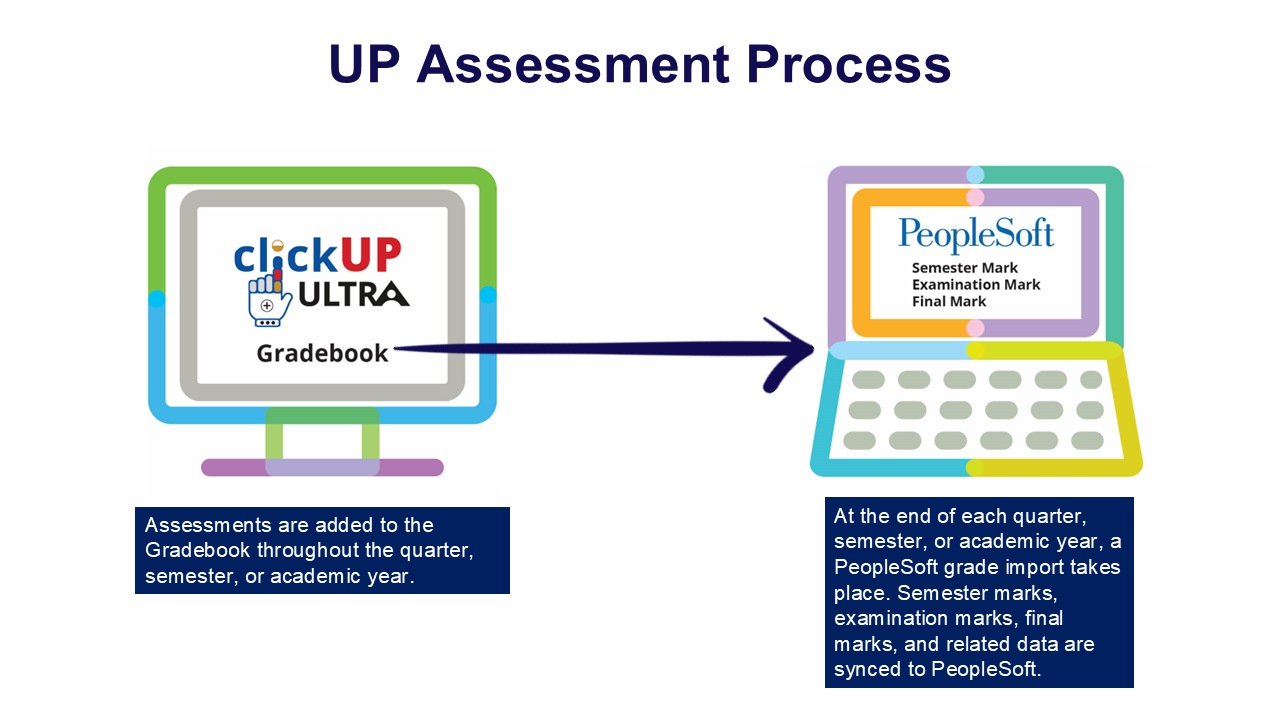
Take note that the DESA team is responsible for training of the Grade Import Process. Please access this fully online course to learn how to get the PeopleSoft columns created in your module's Gradebook.
Once the Grade Import has been completed, the PeopleSoft columns will automatically get created in your Gradebook.
The Gradebook should by this time have the following columns with grades:
- Semester Mark
- Exam Mark - depending on the assessment that you will use, this column should already be created. (Refer to the section about the Semester and Exam settings)
- Final Mark
Ensure that the Exam and Final marks are hidden from the students.
Follow these steps to populate the marks in the applicable PS_ column in the Gradebook. This is an example on how to get the marks in the final mark calculation to the PeopleSoft Final Grade column. You will take the same steps for the Semester mark and the Exam mark.
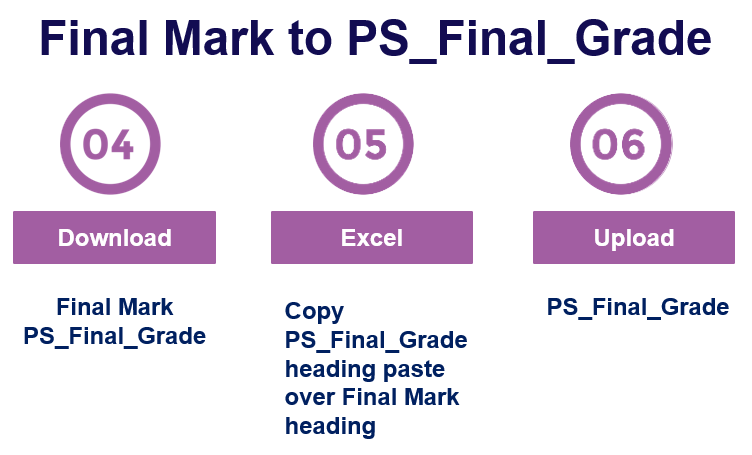
- Download the final mark and PS_Final_Grade columns.
- The Final mark column will contain the marks we want to display under the PS_Final_Grade column heading. The easiest way to not make mistakes is to copy the PS_Final_Grade column heading over the final mark heading.
This is an example of how to copy a heading from one Excel column to another to help you populate a new column with existing data:

- Save the file.
- Upload to the Gradebook.
DESA Support
If you need support with the Grade Import process, please log a call on Smax:
- Login on the UP Portal.
- Access the Smax tile (search for Smax or add the tile if you do not have it yet)
- Choose DESA and complete the online form.
- This call will be routed to the correct support person who will be able to assist you further.