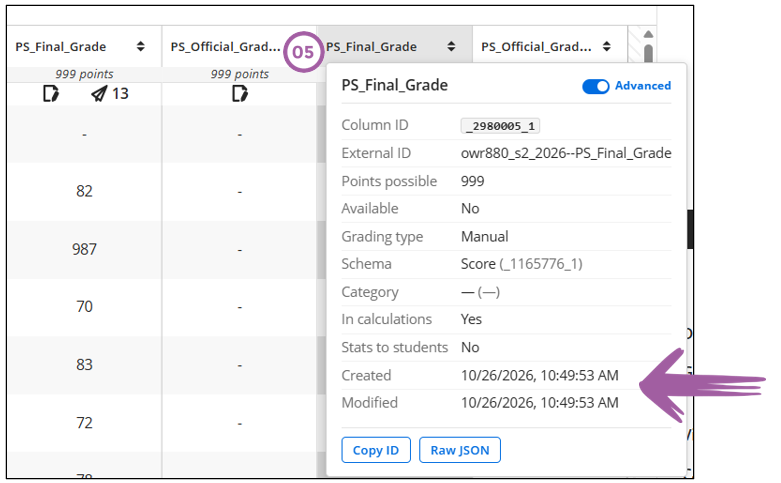
Scenario: I did a full course copy of the previous year's module. I forgot to delete the PeopleSoft gradable items from the Gradebook. We are now busy with the PeopleSoft grade import process and I have now two columns with the same name. How do I determine which is the latest PeopleSoft gradable item?
When you install the Chrome extension, you will be able to hover over a column in the Gradebook Grid view to see the details of the gradable item.
Follow these steps:
-
Download the Chrome Extension.
-
Install the Blackboard Ultra Gradebook Column Info extension. This will create a blue icon in your toolbar:
-
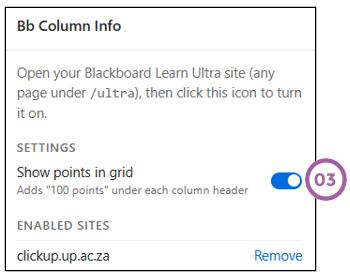
Click on the blue icon to enable the extension:
-
Go to the Gradebook, Grid View.
-
Hover with the mouse over the column heading to display the column info: