How do I see deleted columns?
Follow these steps when someone deleted a gradable item (for example a graded and posted test, assignment, discussion, etc.) to restore the values ONLY (no feedback).
A. Download Gradebook History
-
Click on Gradebook.
-
Click on the Gear icon to open the Gradebook settings panel.
-
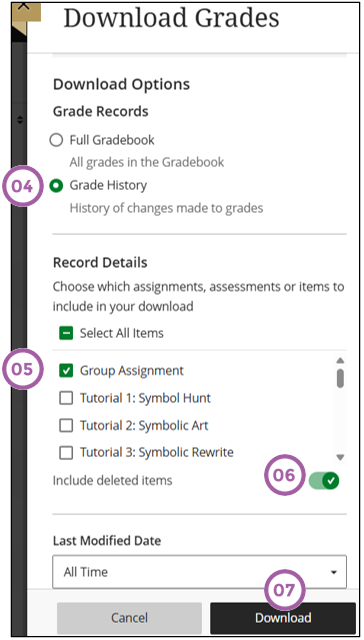
Choose the download option.
-
Choose Grade History.
-
Choose one of the remaining gradable items.
-
Select the option to Include Deleted Items.
-
Click on Download.
-
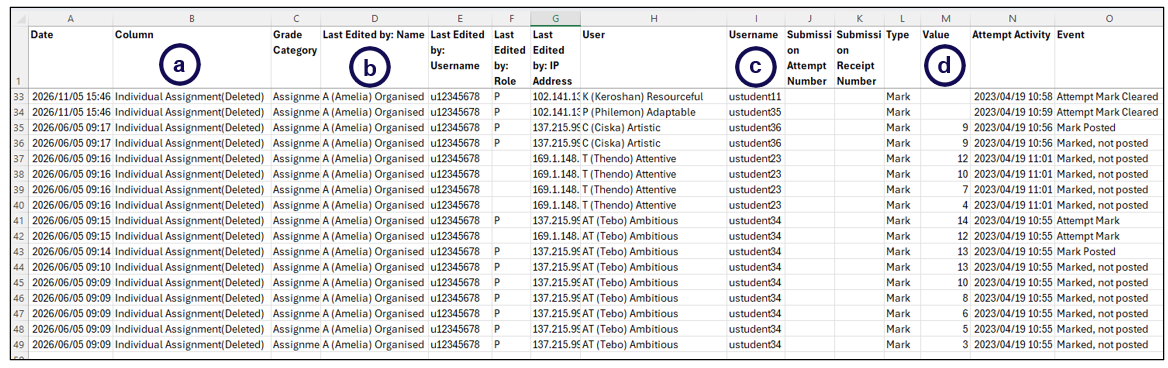
In the Excel you will at least get the values (if auto graded / grading was completed), for example:
a. Indicates the column name that was deleted
b. Indicates who took the action.
c. You will need the username.
d. You will need the Value.
-
Delete all the columns except the username and the value.
-
Delete all the rows that is not applicable.
B. Create new gradable item
- Create a new gradable item.
- Download only the new gradable item.
- Copy the heading of the new gradable item and paste it over the Value heading.
- SAVE the Excel spreadsheet.
- Upload the updated Excel spreadsheet.